![PSII white-01-3.png]](https://kb.psii.global/hs-fs/hubfs/PSII%20white-01-3.png?height=40&name=PSII%20white-01-3.png)
Purpose:
The purpose of an automated email response to outside senders serves to acknowledge receipt of emails and provide key information on how to contact our organization through the proper communication channels. This tool helps ensure effective communication, improves customer satisfaction, and upholds a professional image by offering immediate feedback and essential details, even when direct interaction is delayed.
Procedure:
Step 1: Create an Email Template
Login to the Outlook by opening the desktop application or opening a web browser and logging into office365.
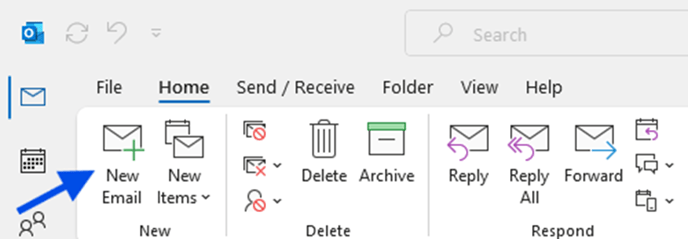
Navigate to the toolbar and click on the New Email icon.
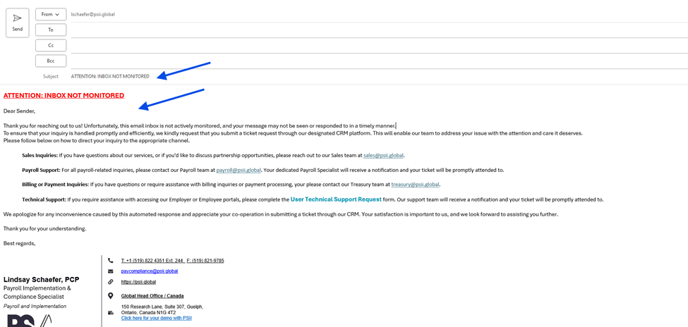
Compose an email with a Subject and Body using the template provided by management.
Example:
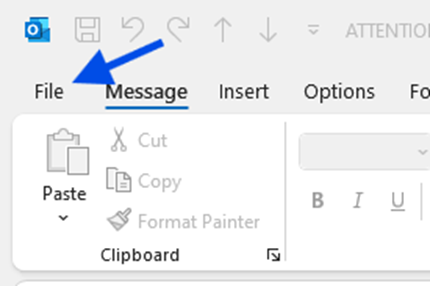
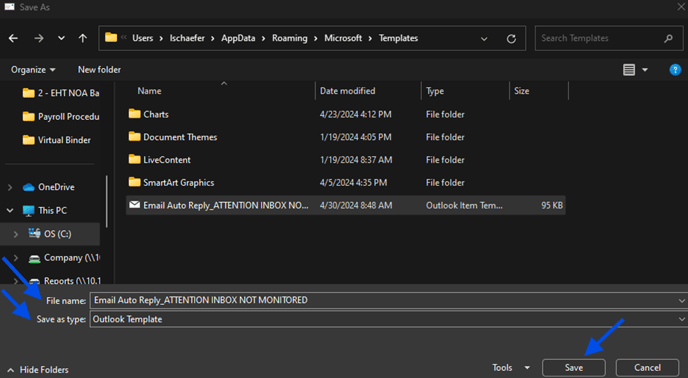
Navigate to the toolbar and click File, then click Save As.
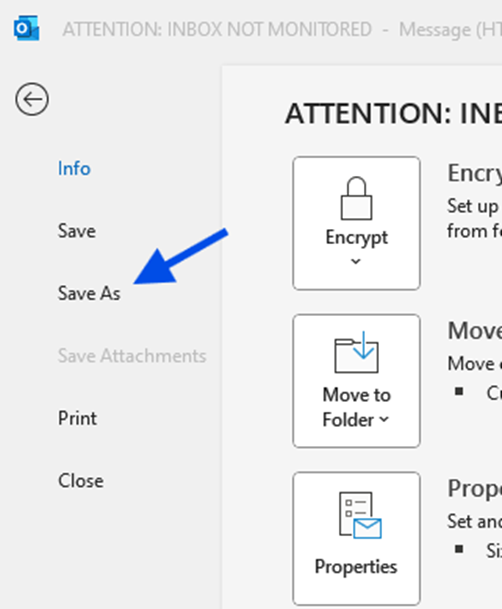
A pop up will appear to save the email.
Note: Save the template in the pre-populated file path
Example: C:\Users\lschaefer\AppData\Roaming\Microsoft\Templates
If your Outlook doesn't pre-populate the correct file path, copy the above path and replace lschaefer with your username (first letter of your first name and full last name).
In the File Name enter an appropriate title for the email template.
In the Save As Tyle select Outlook template.
Click Save.
Step 2: Create a Rule
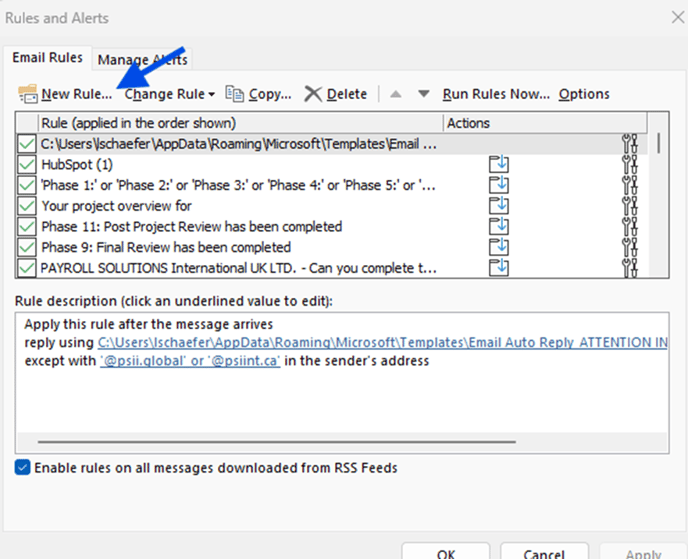
Navigate to the toolbar and click Rules, then click Manage Rules & Alerts.

In the Email Rules tab, click New Rule…
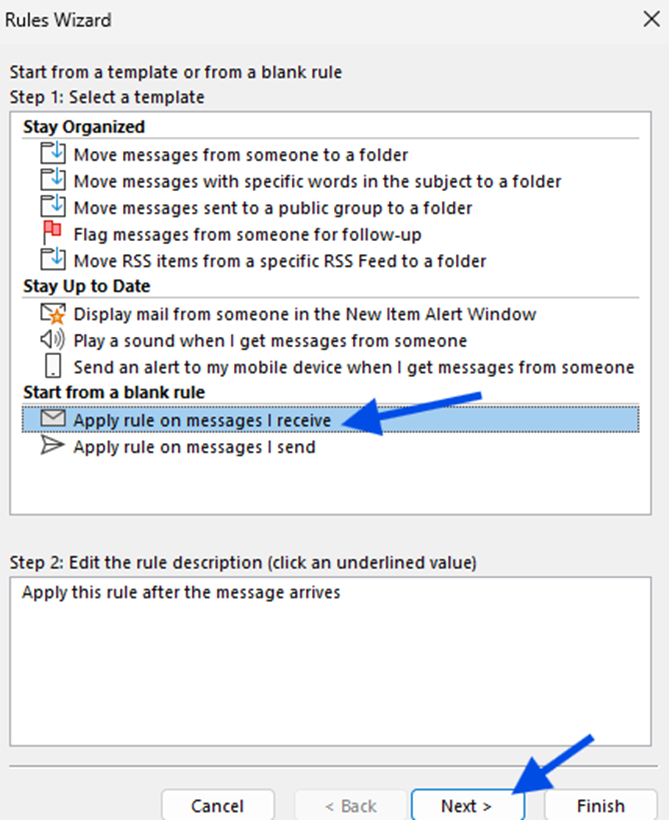
The Rules Wizard will appear to configure the rule settings.
Select a template
Under the Start from a blank rule header, select Apply rule on messages I receive, then click Next.
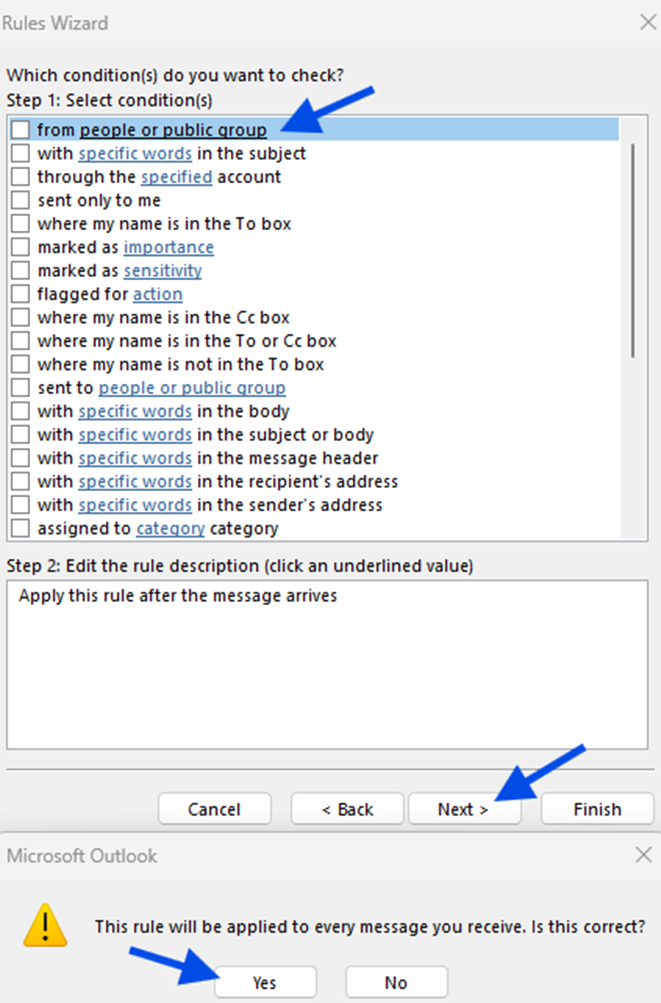
Select condition(s)
The system auto-selects from people for public group, click Next.
A pop up will appear stating “this rule will be applied to every message you received, Is this correct?”, click Yes.
Select action(s)
In the Step 1: Section Action(s) section select reply using a specific template.
In the Step 2: Edit the rule description (click an underlined value) section, click on the a specific template link.
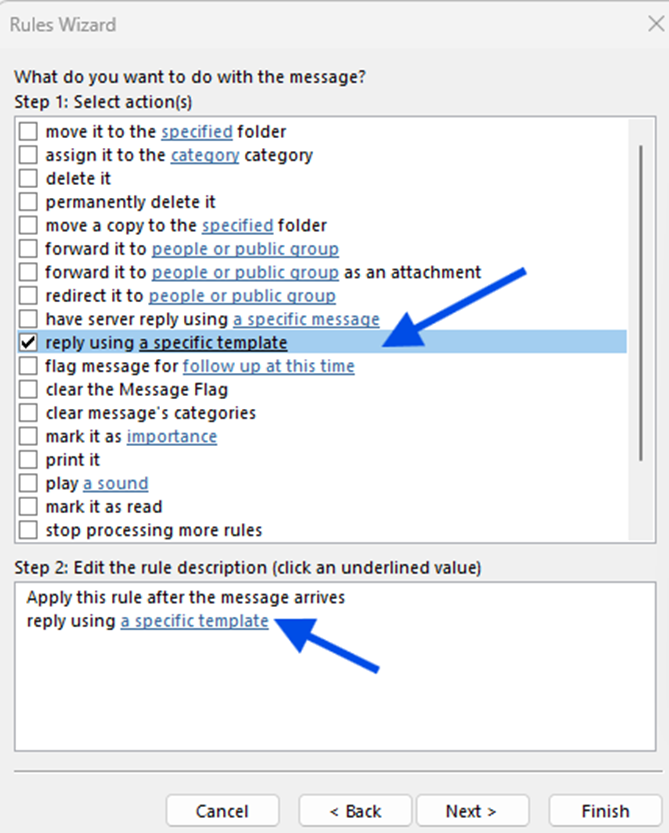
A pop up will appear to select the email template created in “Step 1: Create an Email Template”.
In the Look In: field, select User Templates in User System from the drop down listing.
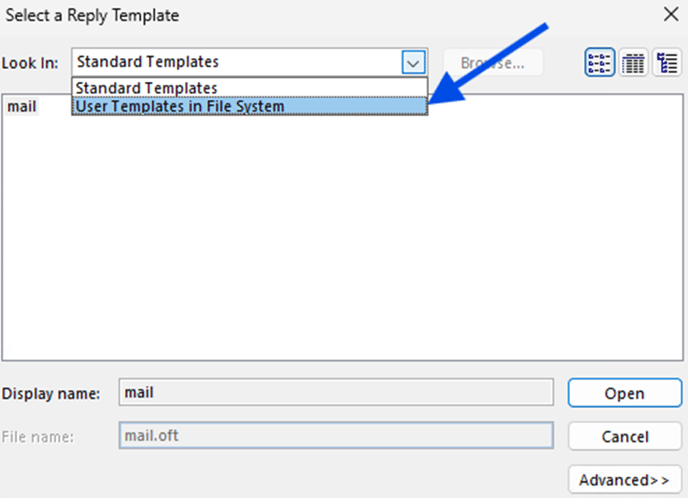
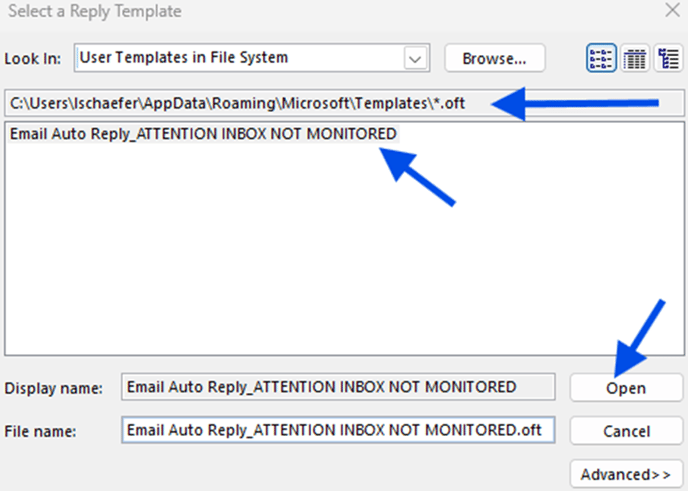
The system will automatically open the file path where the email template was saved.
The email template should appear in the box to select. Select the email template and click Open.
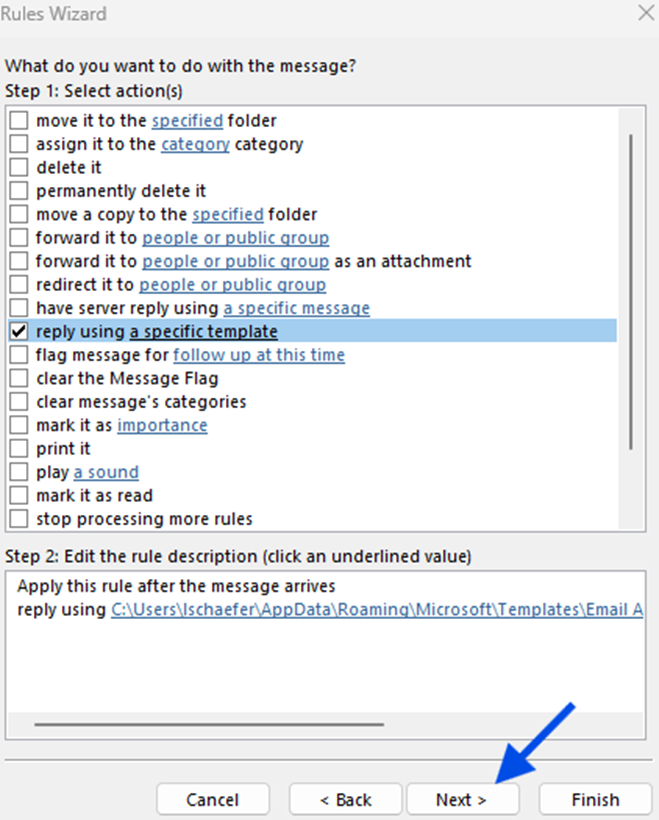
The email template will be applied to the rule, click Next.
Select Exception(s)
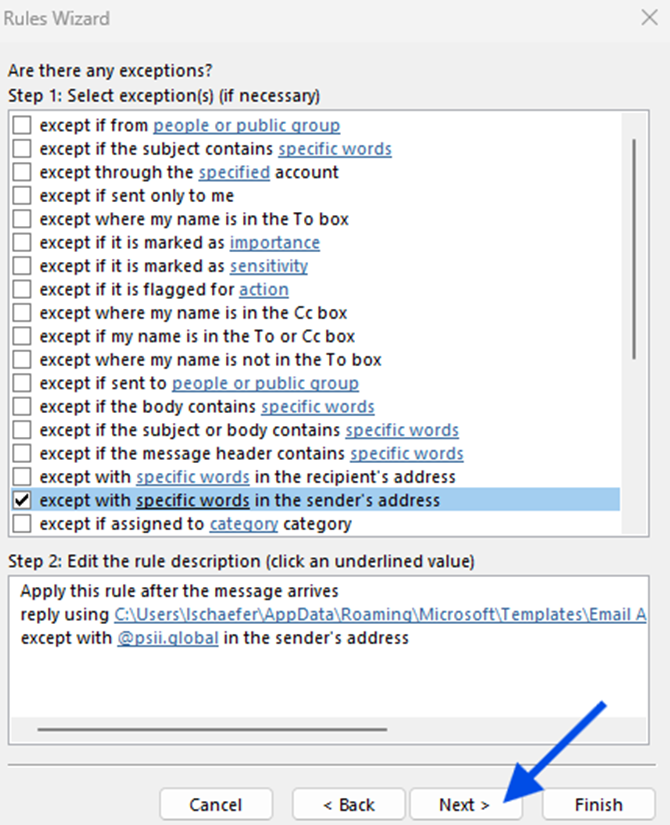
In the Step 1: Select exception(s) (if necessary) select except with specific words in the sender’s address.
In the Step 2: Edit the rule description (click on underlined value) click on the specific words link.
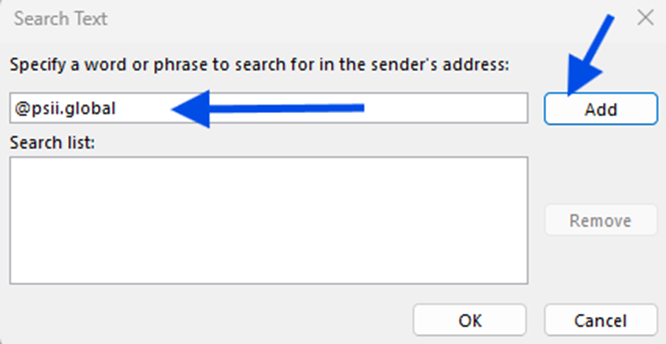
In the Specify a word or phrase to search for in the sender’s address: field enter our organization’s domain (@psii.global), the click Add.
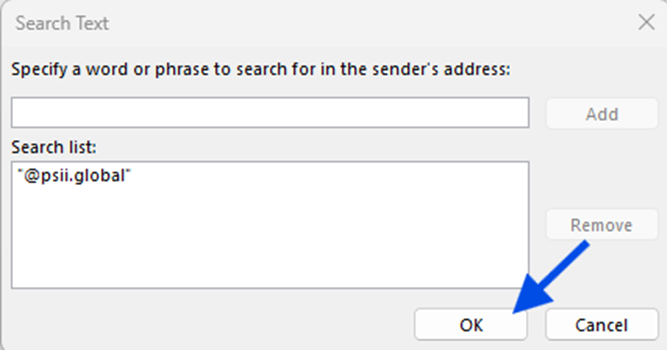
Once added the organization’s domain will now appear in the search list, click OK.
The organization’s domain will be added to the rule exceptions, click Next.
Run the Rule
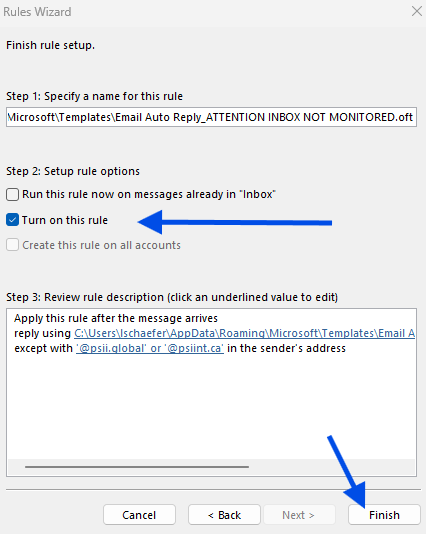
In the Step 2: Setup the rule options section select Turn on this rule option, then click Finish.
Once finished, a pop up will appear stating that the rule will run when the user checks their email in Outlook, click OK.

The rule will now appear in the Rules section. Click OK.
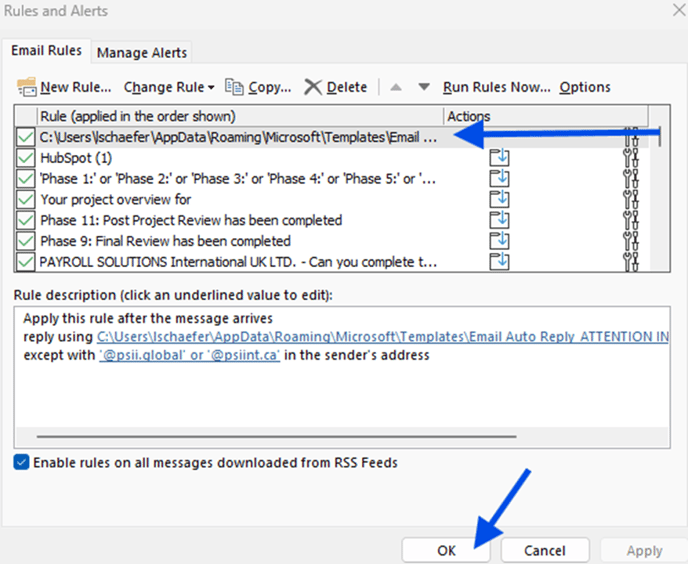
Now that the email template and rule has been configured and applied to your Inbox, Outlook will release an automated response to every emailed received from senders outside of our organization with the email template.
Conclusion:
Overall, automated email responses help ensure effective communication, improve customer satisfaction, and maintain a professional image.
Resources:
YouTube video of the procedure: https://www.youtube.com/watch?v=W7AgV2kAeWQ