![PSII white-01-3.png]](https://kb.psii.global/hs-fs/hubfs/PSII%20white-01-3.png?height=40&name=PSII%20white-01-3.png)
Purpose:
The purpose of this SOP is to outline the steps required to add an EHT account to the eTaxBC portal. The eTaxBC portal is an online platform provided by the British Columbia Ministry of Finance for businesses to manage their tax accounts.
Prerequisites:
Before proceeding with adding an EHT account to the eTaxBC portal, ensure that you have the following information and access:
- Registered EHT Account: The Client must already have a registered EHT account with the BC Ministry of Finance.
- eTaxBC Portal Access: PSII will need to have access to the eTaxBC portal. If you do not have access, you can register for an account on the BC etax website.
Procedure:
Login to the eTaxBC Portal:
Using your registered username and password, login to the eTaxBC Portal on the BC etax website.
Navigate to "Settings":
Once logged in, navigate to the "Settings" section of the eTaxBC portal. This section allows you to add or manage your tax accounts.
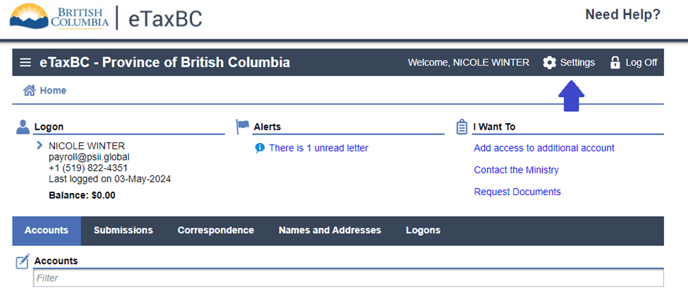
On the dashboard, select the Request access to clients’ account.
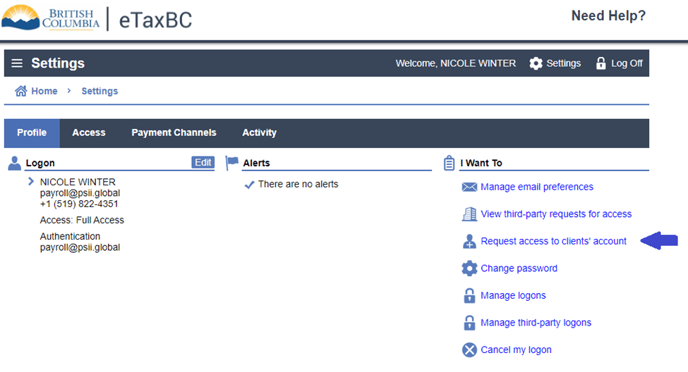
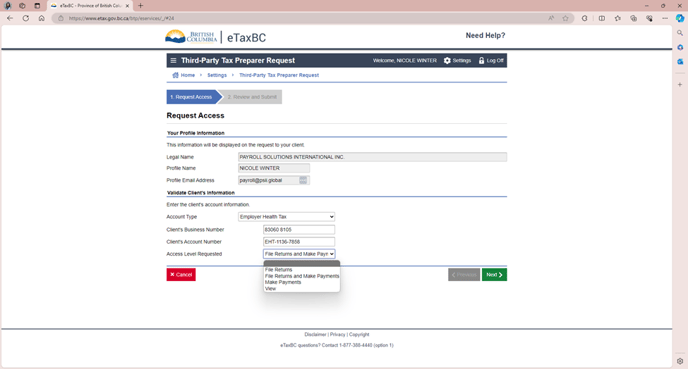
Gather Client's EHT Account Information:
Gather the required information on the Client’s account to verify the account details.
Account Type = Employer Health Tax
Client’s Business Number = Client’s registered business number with CRA (9-digits)
Client’s Account Number = Client’s EHT BC account number (EHT-XXXX-XXXX)
Access Level = Select the option that best suits the PSII requires in order to fulfill service requirements on behalf of the Client.
In almost all cases, PSII would require “File Returns and Make Payments” access.
Verification and Confirmation:
After entering the necessary information, review all the details carefully to ensure accuracy. Once verified, click on the "Next" button to proceed.
eTaxBC will verfiy the account information entered and prompt a message confirming. Click “Submit” to proceed with submitting the access request to the Client/account holder.
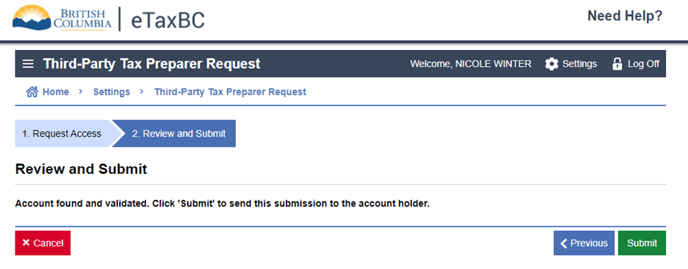
Confirmation and Account Activation:
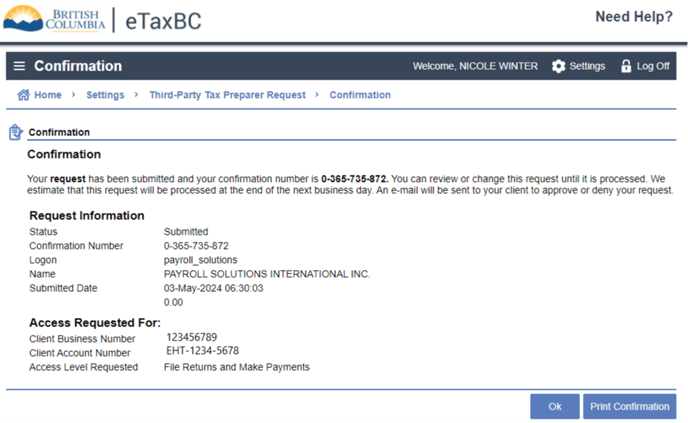
Upon successful submission, you will receive a confirmation message indicating that your EHT access request has been sent to the Client/account holder.
Save a copy of the confirmation in the Client’s folder to retain for our records.
Third Party Tax Payor Request Approval:
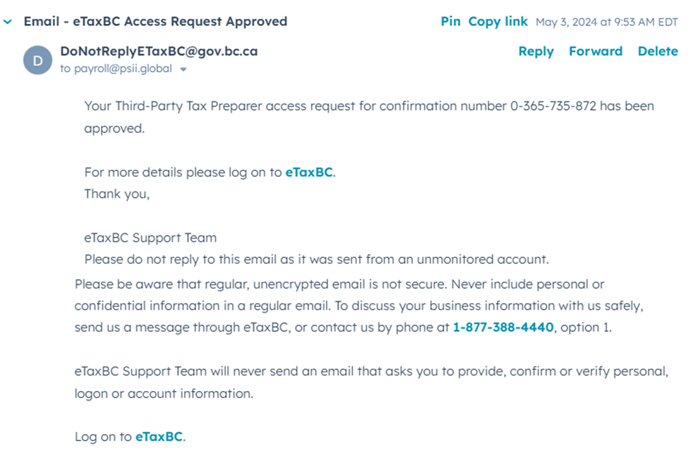
eTaxBC will submit the access request to the Client/account holder to approve or deny PSII’s request via email. Once the Client/account holder has actioned the request, PSII will receive an email notification confirming access.
Additional Notes:
- It is essential to ensure the accuracy of the information provided during the account setup process. Any discrepancies or errors in the information may affect the proper functioning of your EHT account on the eTaxBC portal.
- If you encounter any issues or need assistance during the process, you can contact the eTaxBC helpline or refer to the available resources on their website.
Conclusion:
By following this SOP, PSII will be able to successfully add Client EHT accounts to the eTaxBC portal and effectively manage our compliance obligations.