![PSII white-01-3.png]](https://kb.psii.global/hs-fs/hubfs/PSII%20white-01-3.png?height=40&name=PSII%20white-01-3.png)
Procedure:
- Visit https://www.canada.ca/en/revenue-agency/services/e-services/represent-a-client.html
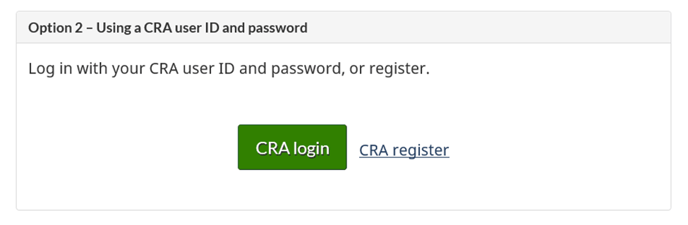
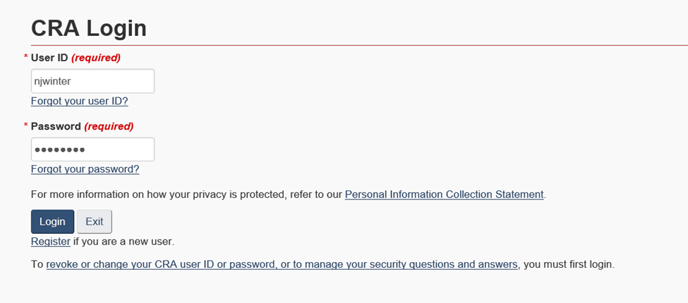
- Login using your registered credentials via Option 2 (CRA User ID and password).
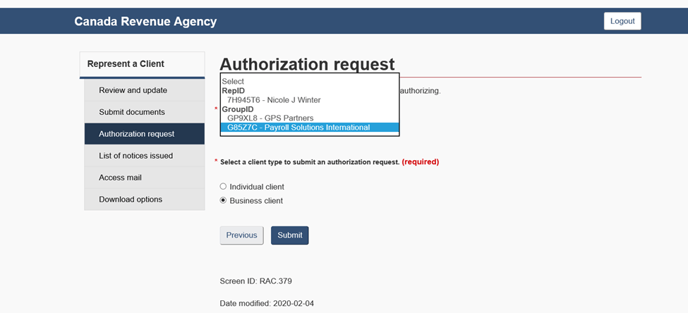
- Select Authorization Request from the left hand side menu.

- Select the appropriate Group ID from the drop down list provided, and select Business Client. Then select Submit.
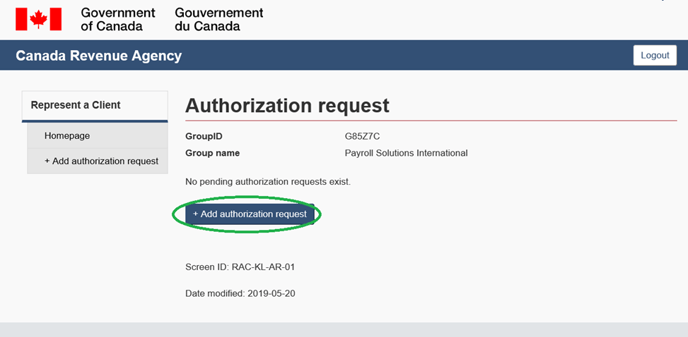
- Select Add Authorization Request
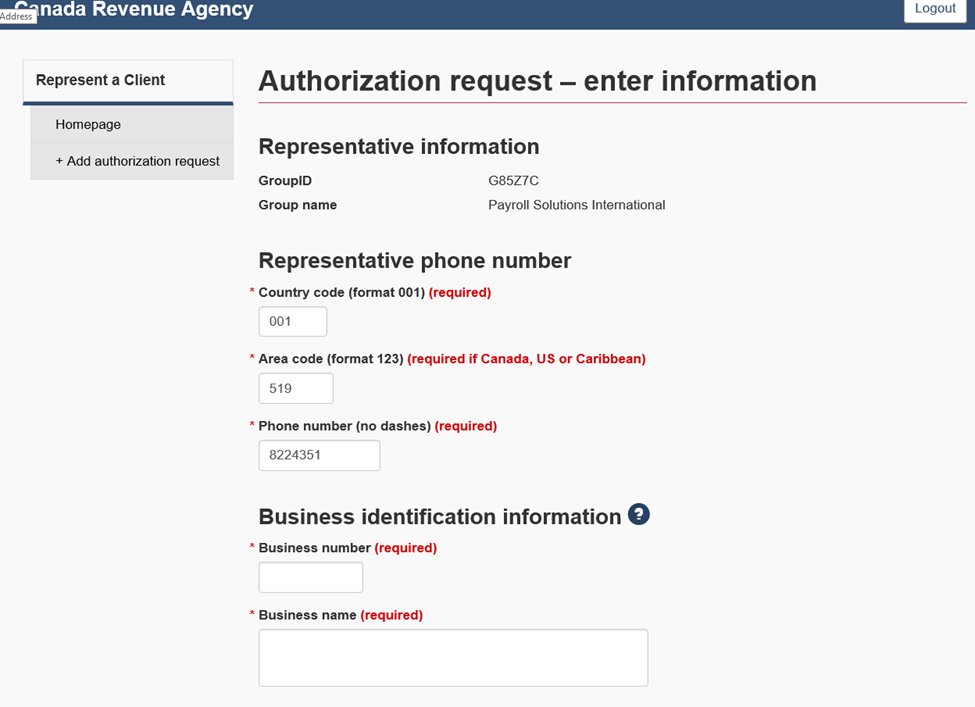
- Complete the applicable fields in the on screen form to complete the request.
Note: the information entered here must match what CRA has on file or the request will not allow you to process, therefore, ensure that you have this information readily available via a statement of account or otherwise.
-
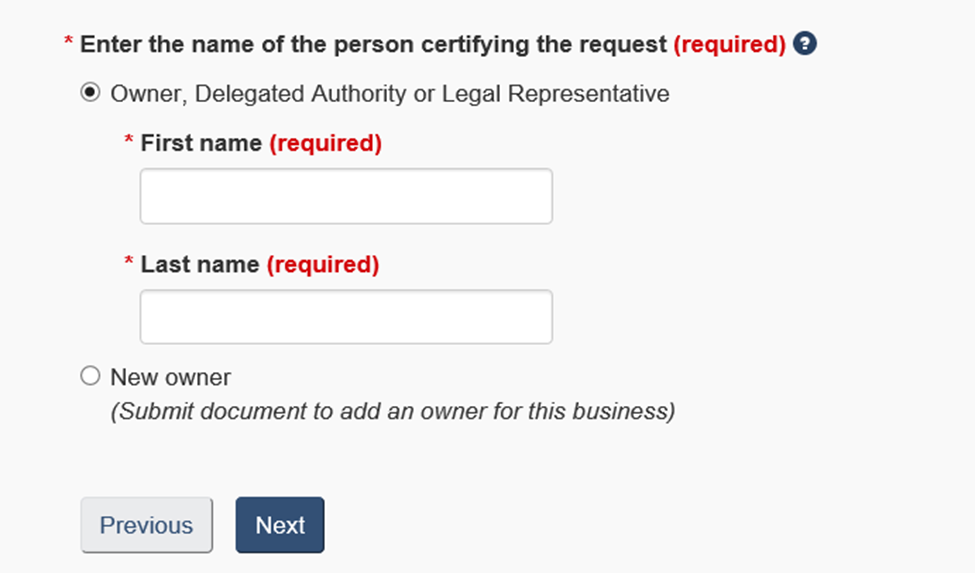
- Owner, Delegated Authority, or Legal Representative (Preferred Method): If CRA has the respective signing officer of the organization on file already, you will be able to complete the pre-set fields for first and last name with the individual’s details. Processing business consent forms using this method is the fastest and easiest way to do so.
- New Owner: If you are unsure who is an authorized signing officer, you can use this option. However, you will need to supply the applicable supporting documentation with the signed consent form, including Directors/Officers listing of the organization along with the Articles of Incorporation. It is recommended that you also write a letter to CRA explaining that you have provided the applicable back up with the signed business consent form. Business consent forms processed this will generally take longer than the recommended method, and are subject to more scrutiny by CRA.
NOTE: Business consent forms are only valid for approximately 30 days from the date of request, therefore, it is imperative to ensure that the signed business consent and support documentation, as applicable, is provided back to CRA before the expiration of the request.
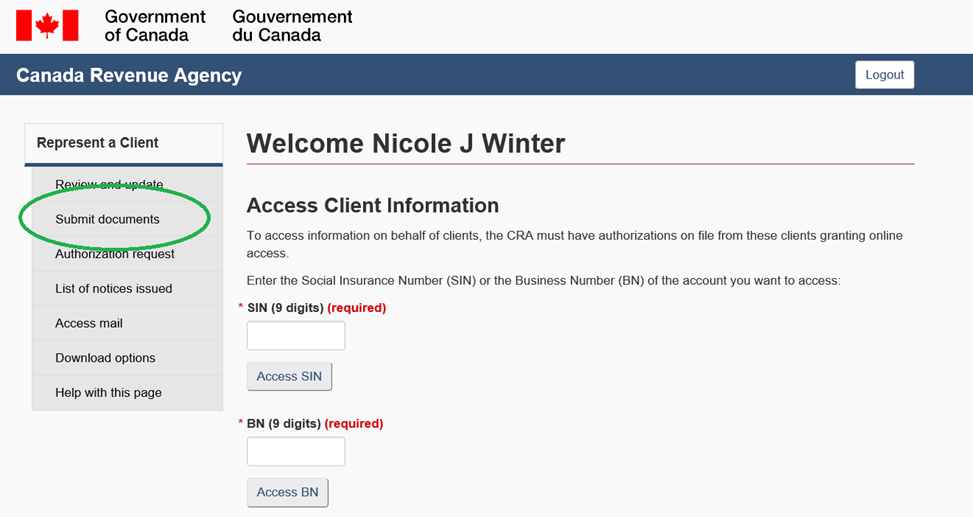
8. Once you have the signed Business consent/applicable documentation, select Submit Documents and follow the applicable steps to submit documents.
9. Select the Business Client option and Yes to case of reference number. This information can be referenced from the PDF Business Consent provided to the client for signature or signed by the client.
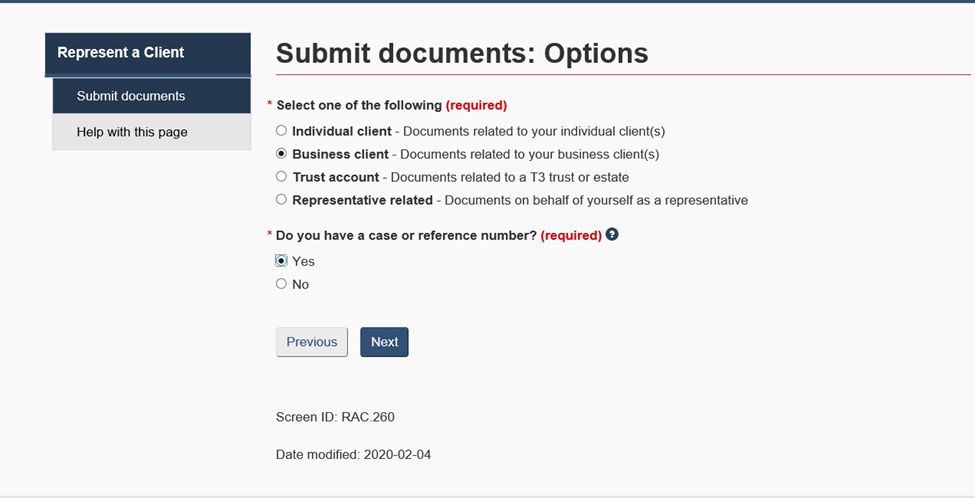
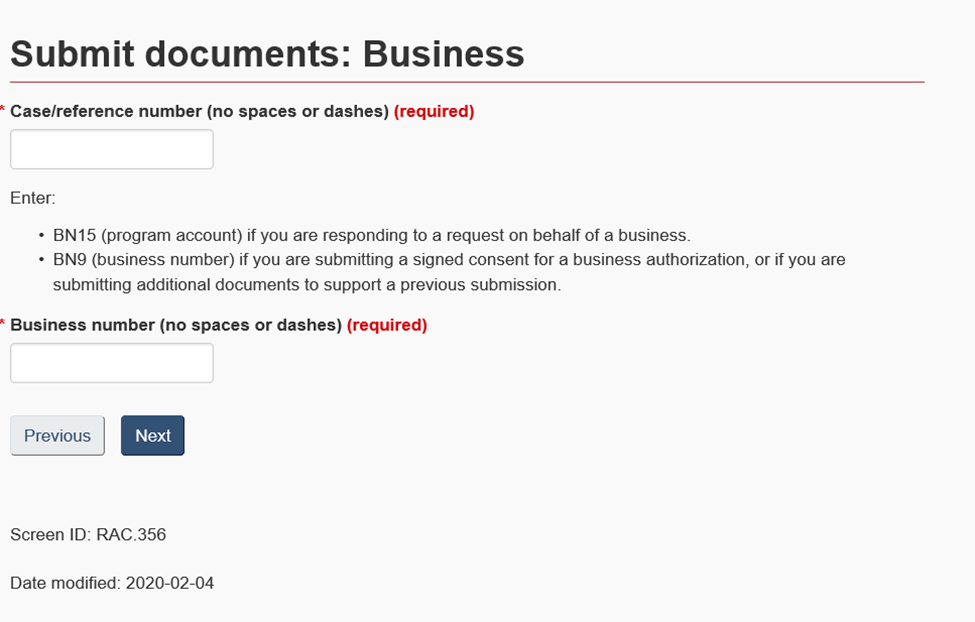
10. Enter the Case/Reference number and Business Number from the Business Consent form. Then select Next.
11. Browse and select the appropriate forms and documentation from the client Authorizations folder, including signed business consent.
NOTE: ensure that each attachment is labelled according with the applicable client name and document title. Once documents have been upload, print the upload confirmation to PDF and save on file in the Authorizations folder of the F Drive, client file.
12. Set a reminder in Hubspot to follow up with CRA every five days after the document has been uploaded to ensure that the consent is active.
13. Once active, verify the remittance frequency and account balances on file to ensure that nothing is outstanding on the client account, and that the client is set up with the proper schedule in PaySolution for remittance payments.
Conclusion:
By following this SOP, your organization can ensure a consistent and compliant process for obtaining CRA business consent on behalf of business clients. Always stay informed about any updates or changes in CRA procedures to keep the SOP relevant and effective.