![PSII white-01-3.png]](https://kb.psii.global/hs-fs/hubfs/PSII%20white-01-3.png?height=40&name=PSII%20white-01-3.png)
Procedure:
Set up and complete a spreadsheet using the following headers:Name the file and save to appropriate folder.
Open Word/Mailings/Start Mail Merge/Labels
Select correct label size.
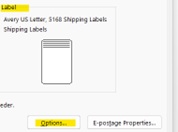
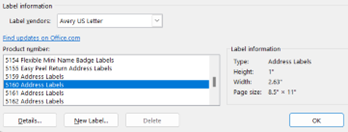
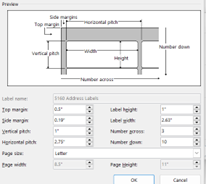
If the brand/product number isn’t available, measure the labels at hand and enter the label dimensions in the grid on the details tab at the right to determine which product number to select.

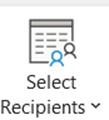
Click Select Recipients icon on ribbon and select Use an Existing List (list created in step 1)

Select the existing list from the file explorer that pops up and click OK.
On pop up box called Select Table, click OK.
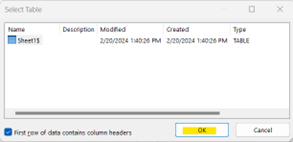
Note: uncheck box at bottom of popup if the table does NOT have column headers.
Edit Recipient List – Review list if applicable

Insert Merge Field – add spaces and commas where applicable

Finish and Merge Load the labels into the appropriate printer and print the merged document.
