![PSII white-01-3.png]](https://kb.psii.global/hs-fs/hubfs/PSII%20white-01-3.png?height=40&name=PSII%20white-01-3.png)
Scope:
Client’s often require additional reports to be generated each payroll to be able to perform administrative tasks such as RRSP accounts. There are multiple ways to pull this data from the PaySolution – transaction listing, custom employee listings, and payroll exports. This procedure will use RRSP’s as an example.
Option 1: Payroll Exports
Login to PaySolution
Select the applicable Service Provider, then select the Client which requires an RRSP report
From the Main Menu, click on System Reports
Click on Payroll Exports
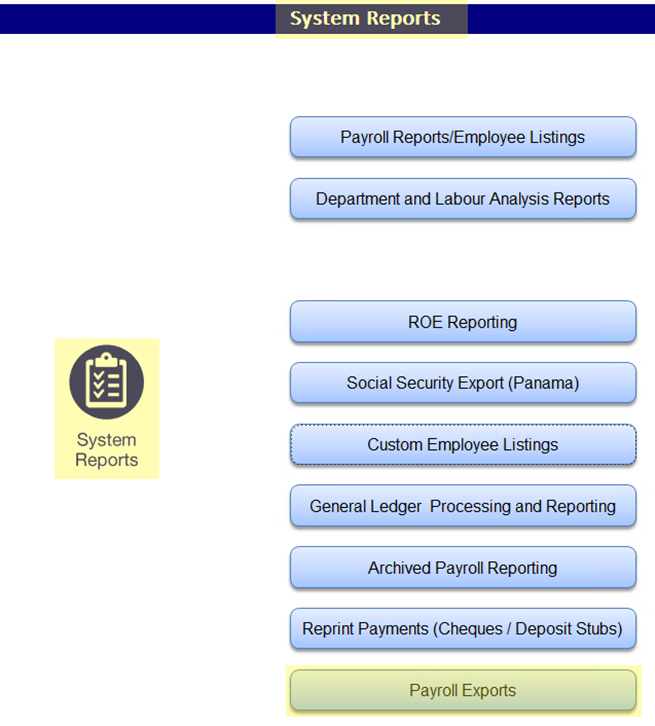
Click on Create New Payroll Export Format

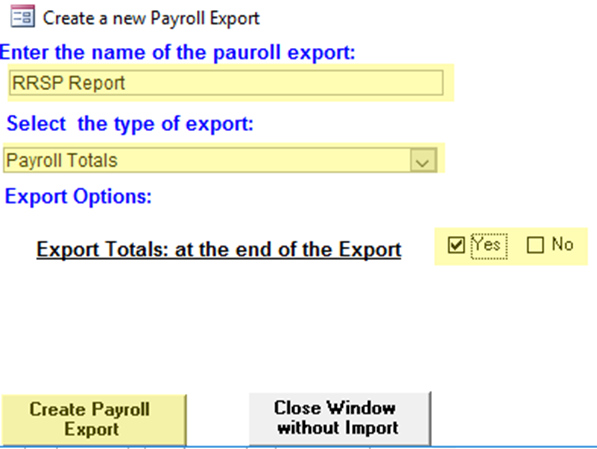
Create the export format
-
- Enter the name of the payroll export: enter the file name for the export
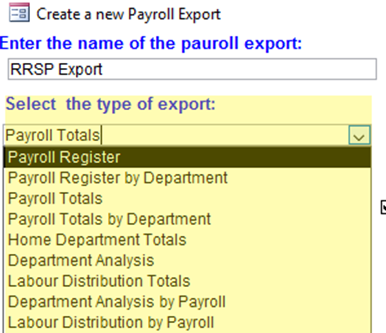
- Select the type of export: select the export type from the drop-down menu
- Export Options: select Yes or No if you’d like totals at the end of the export
- Click Create Payroll Export
Notes: breakdown of the export types
- Payroll Register:
- Payroll Register by Department:
- Payroll Totals
- Payroll Totals by Department
- Home Department Totals
- Department Analysis
- Labour Distribution Totals
- Department Analysis by Payroll
- Labour Distribution by payroll
Create the export template
-
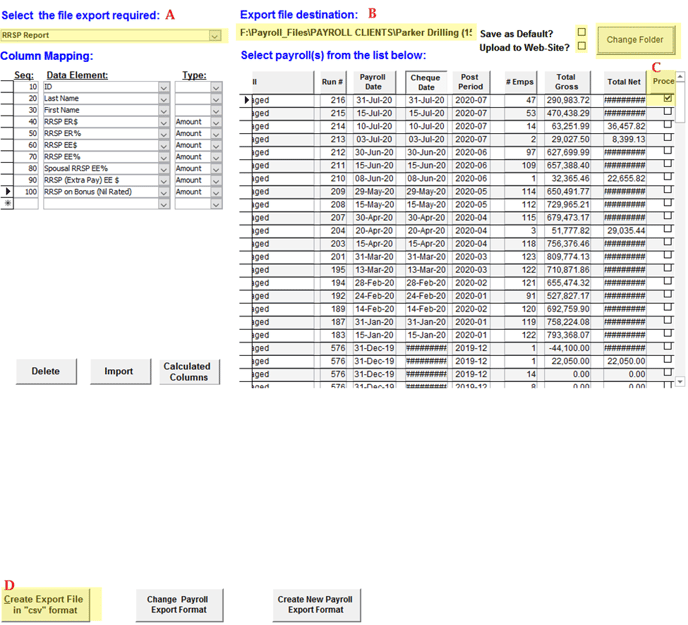
- Under Select the file export required, select the export from the drop-down listing
- Under Column Mapping, add line items for the information to be included in the template
- Seq column: the system will automatically assign the sequence number
- Data Element column: select the information to be included in the export from the drop-down listing
- Type column: select the data type from the drop-down listing
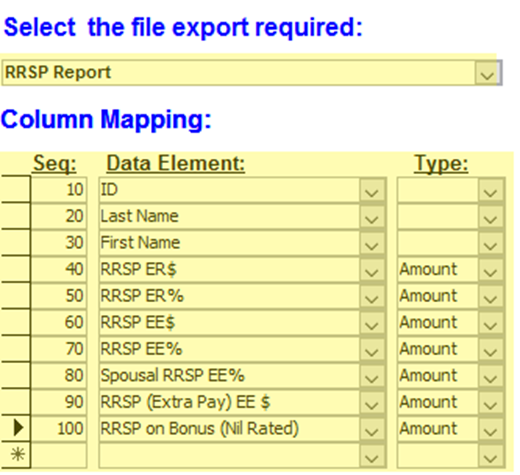
Once the export is created, the system saves the template. To access your export at any time, select it from the Select the file export required drop-down listing. Changes can be made at any time to the columns and the system will automatically save the changes.
Generate the export file
-
- Under Select the file export required, select the export from the drop-down listing
- Under Export file destination section, select the file path by clicking on Change Folder
- Untick the boxes beside Save as Default? and Update to Web-site?
- Under Select payroll(s) from the list below section, tick the box under the Process column for each payroll that should be included in your export
- Click Create Export File in ”csv” format at the bottom of the report
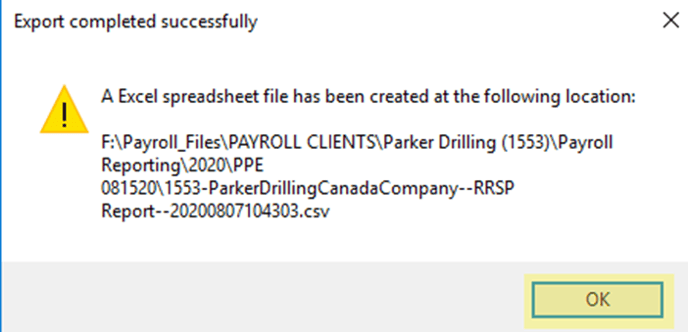
- A pop-up will appear confirming the export has been created and saved, click OK
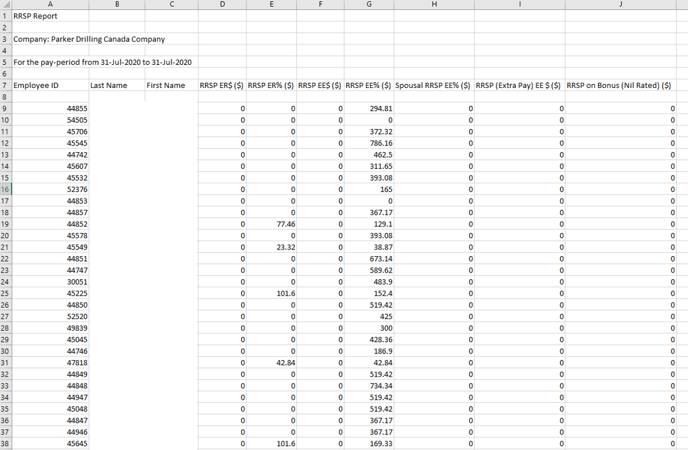
What the Excel file looks like
-
- The excel file can be manipulated to add or remove columns/rows, labelling, or layout to meet the Client’s requirements
Option 2: Transaction Listings
Login to PaySolution
Select the applicable Service Provider, then select the Client which requires an RRSP report
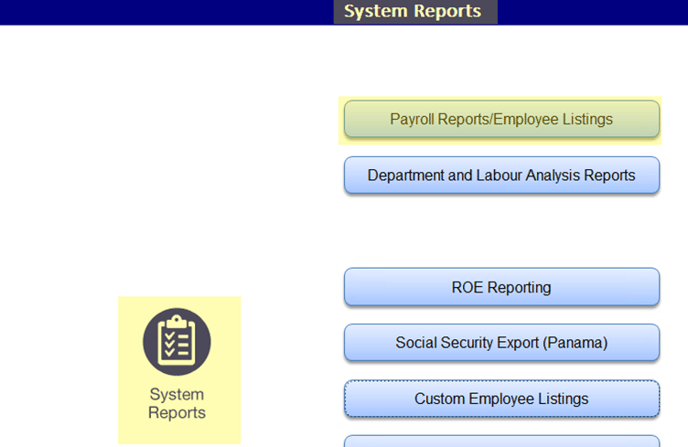
From the Main Menu, click on System Reports
Click on Payroll Reports/Employee Listings
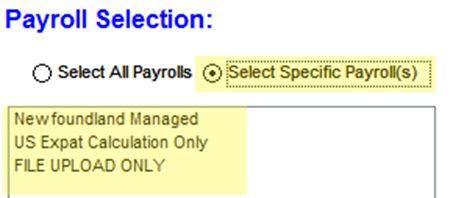
Under the Payroll Selection section, click on either Select All Payrolls or Select Specific Payroll(s)
- The system will auto-select Select All Payrolls
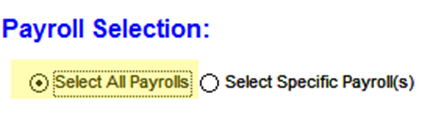
- If a client has multiple sub-payrolls, there is the option to select a particular sub-payroll by clicking on Select Specific Payrolls(s) and selecting the sub-payroll from the listing
Click on the Miscellaneous tab
Click on Transaction List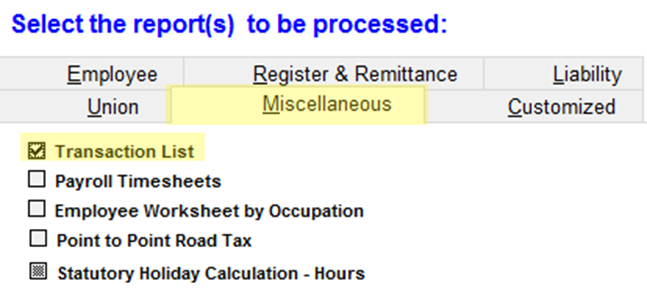
Click Display Report at the bottom of the screen
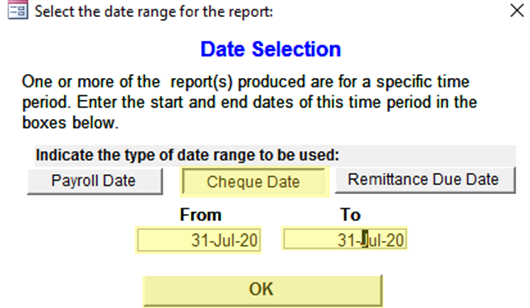
Click Cheque Date
Enter the date range in the From & To fields
Dates can be entered for a period of time (ie; July 1- 31) or the pay date (ie; July 31 – July 31)
Click OK
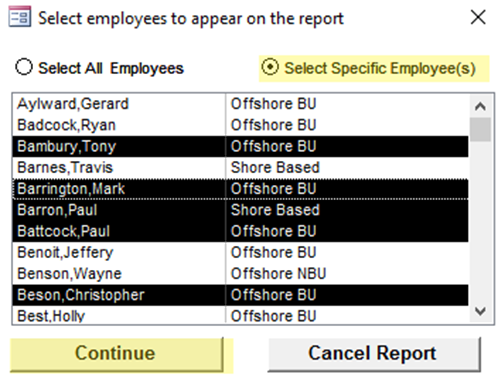
Select if all employees or specific employees should be included in the report, then click Continue
-
- The system will auto-select Select All Employees
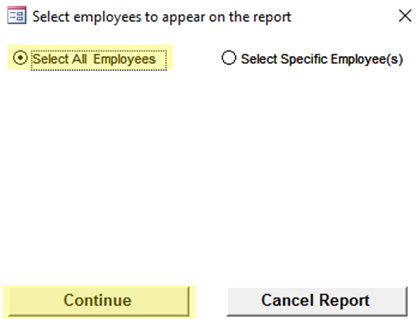
- If the report should only include a specific employee, or group of employees, click on Select Specific Employee(s) and select the employees from the listing. Hold down Ctrl while selecting the codes
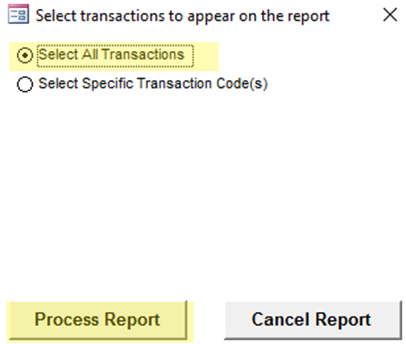
- The system will auto-select Select All Transactions
- In most cases, this option is not used since the report is being generated for a specific code or group of codes (ie; RRSP)
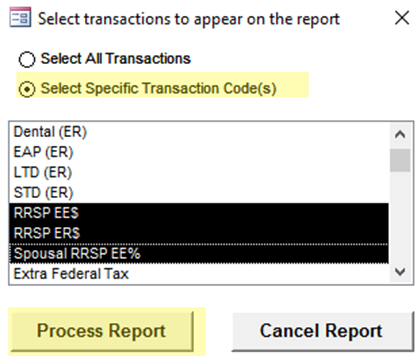
- In most cases, this option is not used since the report is being generated for a specific code or group of codes (ie; RRSP)
- If the report should only include a specific employee, or group of employees, click on Select Specific Transaction Code(s) and select the codes from the listing. Hold down Ctrl while selecting the codes
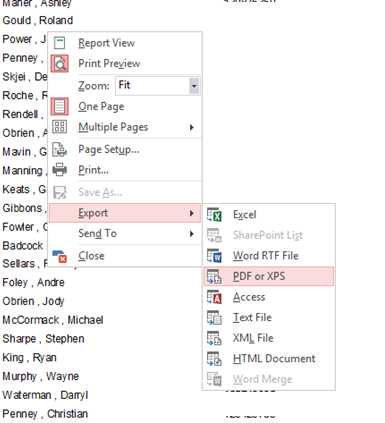
The Transaction Listing report will generate in PDF format- The report can be saved as a PDF by right-clicking on the report, clicking on Export, clicking PDF or XPS, then selecting the file path were the report should be saved
- The system will auto-select Select All Employees
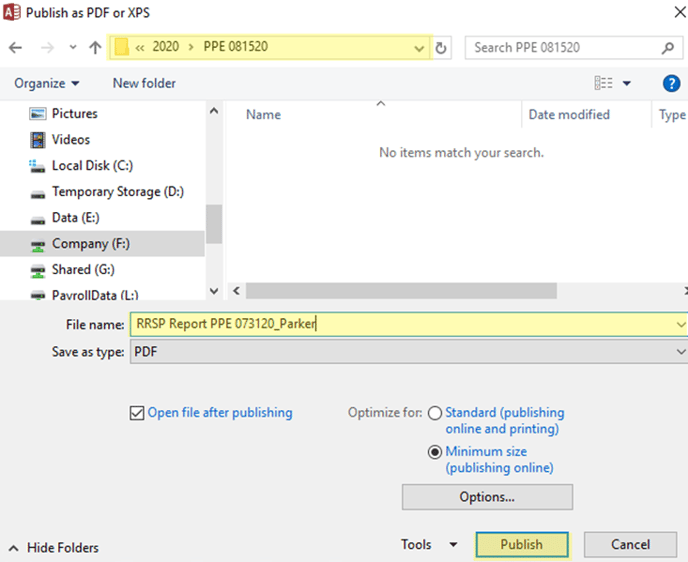
Update the file name to appropriately reflect what type of report it is, then click Publish
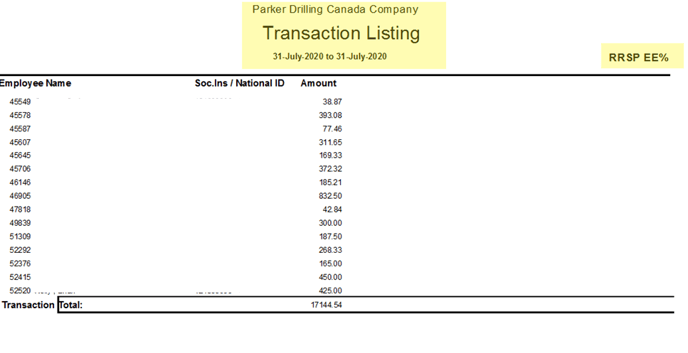
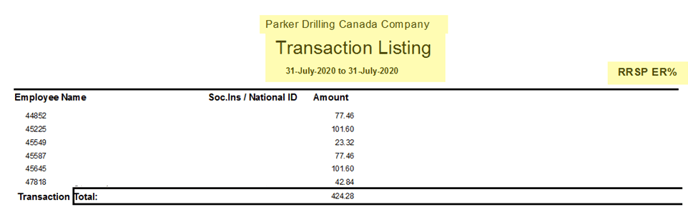
The PDF report will include a report for each transaction code selected. The report will display the Client name, the date range selected, the employee name/ID/SIN, and the transaction code
Example of what the PDF report looks like
The report can also be exported into an Excel file format by right-clicking on the report, clicking Export, clicking Excel, select the file path were the report should be saved, then click OK
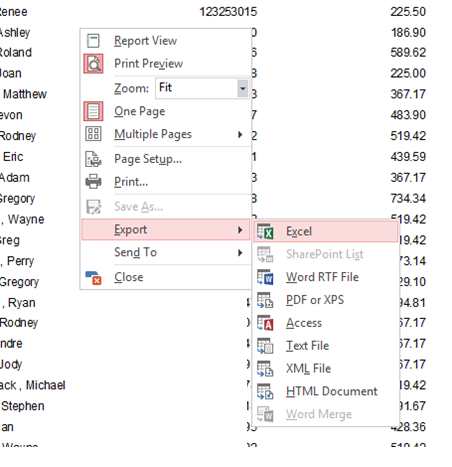
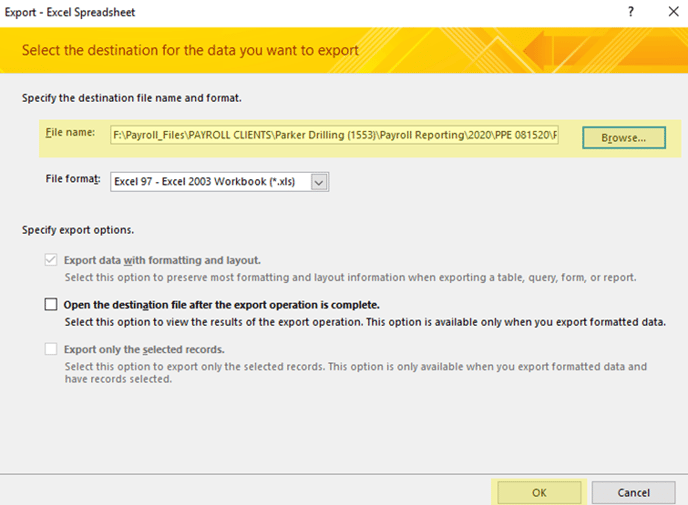
The file name will auto-populate, update the file name to appropriately reflect what type of report it is


The excel file will include a listing for each transaction code selected. The file will display the employee name/ID/SIN and the transaction code amounts. The column headers and transaction code names will not come through properly and should be updated (the PDF report can be used to determine what the headers and transaction codes should be)
What the Excel file looks like
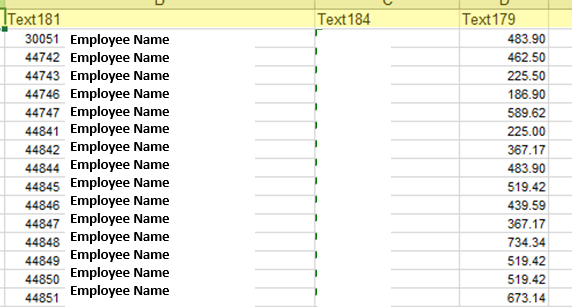
Provide the RRSP report to the client by manually uploading to the Client portal via the Admin portal
-
- The excel file can be manipulated to add or remove columns/rows, labelling, or layout to meet the Client’s requirements
Option 3: Custom Employee Listings
Important: There are only 5 columns of data that can be included in the report, keep note of this when deciding whether this report will work for your client or not. If there are more than 5 codes to be included in your report, the Custom Employee Listings will not work.
Login to PaySolution
Select the applicable Service Provider, then select the Client which requires an RRSP report
From the Main Menu, click on System Reports
Click on Custom Employee Listings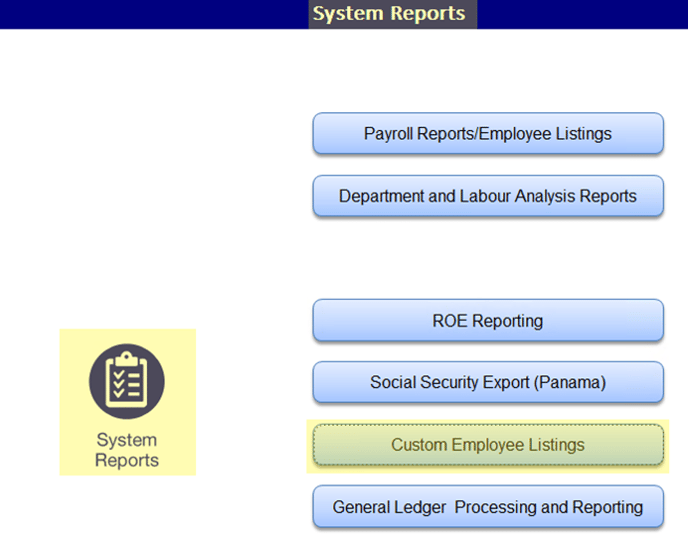
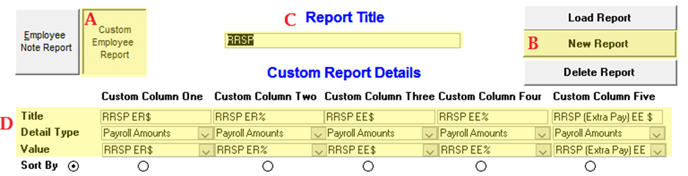
-
- Click on Custom Employee Report
- Click on New Report
- Enter a file name in the Report Title Choose a file name to appropriately reflect what type of report it is
- Setup each column with a Title, Detail Type, and Value
Note: the employee name and ID will automatically come through to the report so it does not need to be setup
-
-
- Title: Enter the column title in this field
- Detail Type: select the type of information from the drop-down listing (Employee Details, Payroll Hours, Payroll Amounts)
- Value: select the field or codes that should be included in the report from the drop-down listing. Ensure the item selected corresponds with the Title.
-
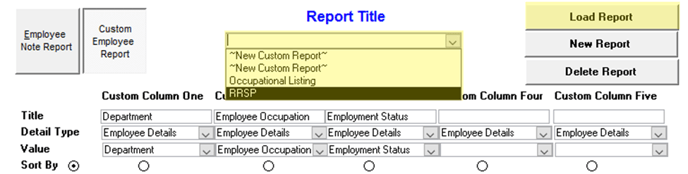
Once the custom report is created, the system saves the report template. To access your custom report at any time, click on Load Report and a drop-down listing will appear. Click on your report and the column data will appear. Changes can be made at any time to the columns and the system will automatically save the changes.
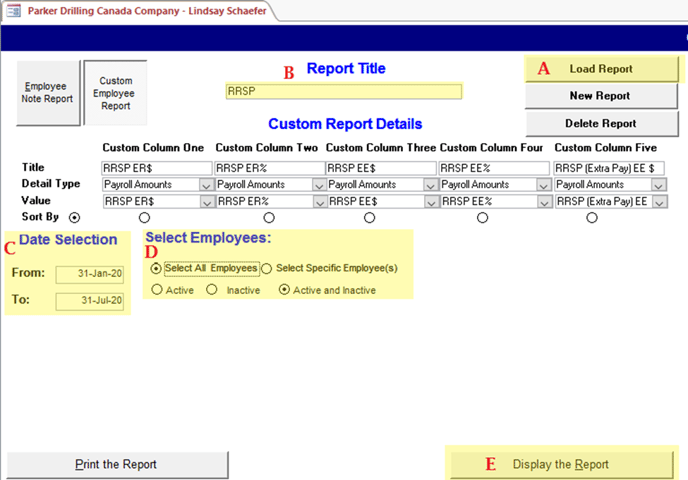
Generate the report
-
- Click on Load Report
- Select the report from the Report Title drop-down listing
- In the Date Selection, enter the date range
- Dates can be entered for a period of time (ie; July 1- 31) or the pay date (ie; July 31 – July 31)
- In the Select Employees section, select the applicable options for your report
- Click Display the Report at the bottom of the screen
The report will appear in PDF format
-
- The report can be saved as a PDF by right-clicking on the report, clicking on Export, clicking PDF or XPS, then selecting the file path were the report should be saved
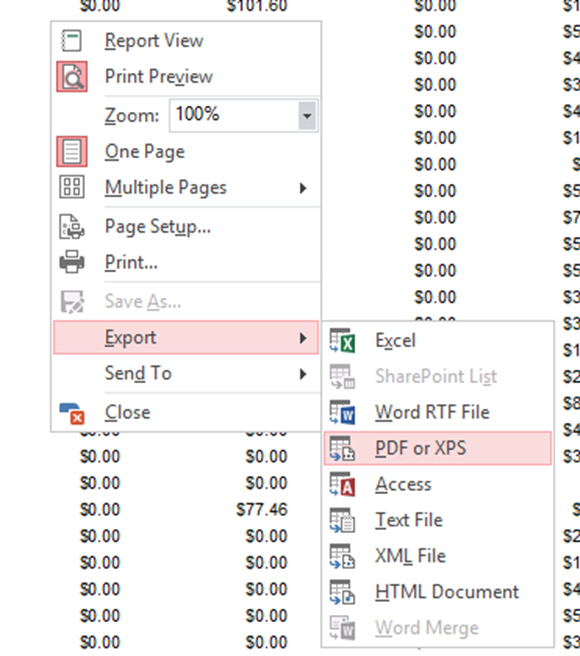
- The report can be saved as a PDF by right-clicking on the report, clicking on Export, clicking PDF or XPS, then selecting the file path were the report should be saved
Update the file name to appropriately reflect what type of report it is, then click Publish
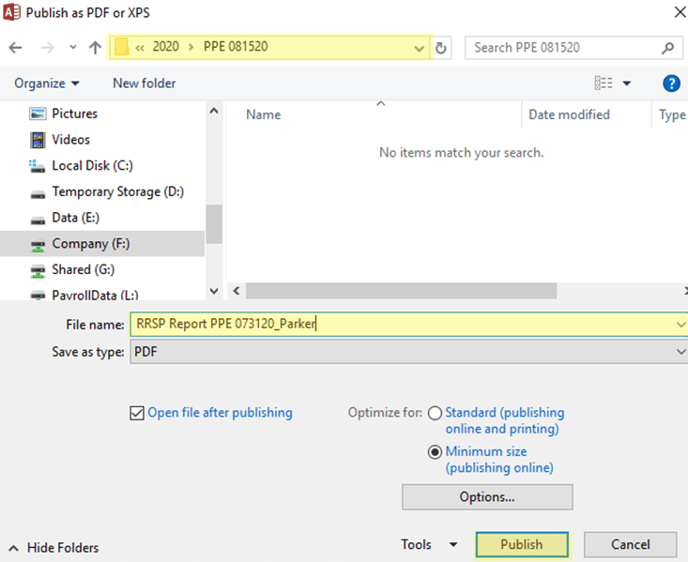
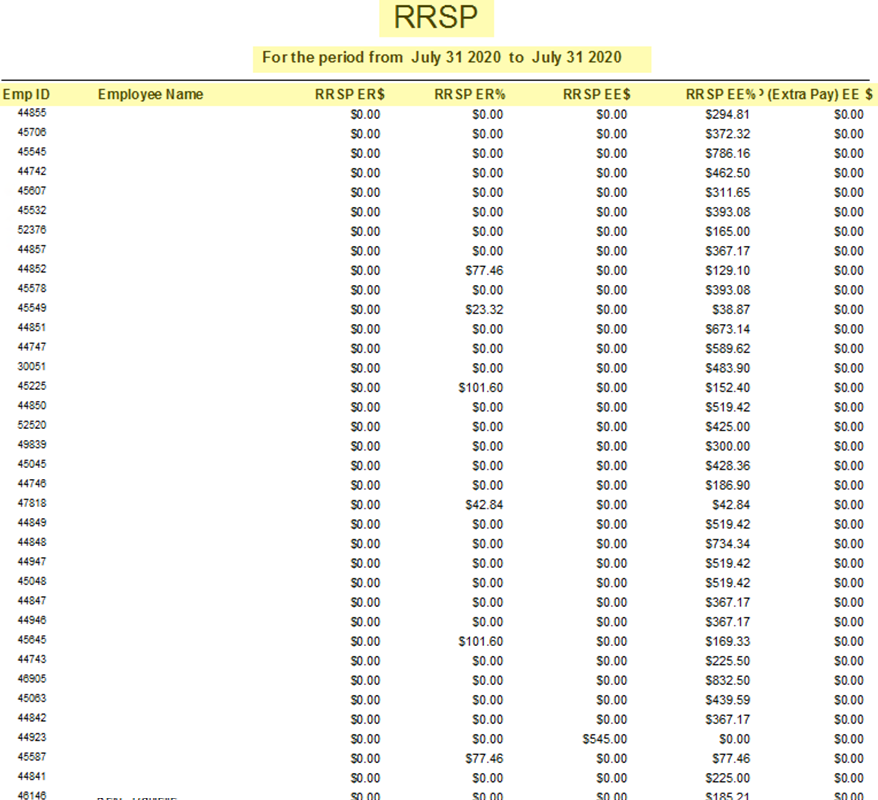
The PDF report will include a report for each transaction code selected. The report will display the Client name, the date range selected, the employee name and ID, and the transaction code
Example of what the PDF report looks like
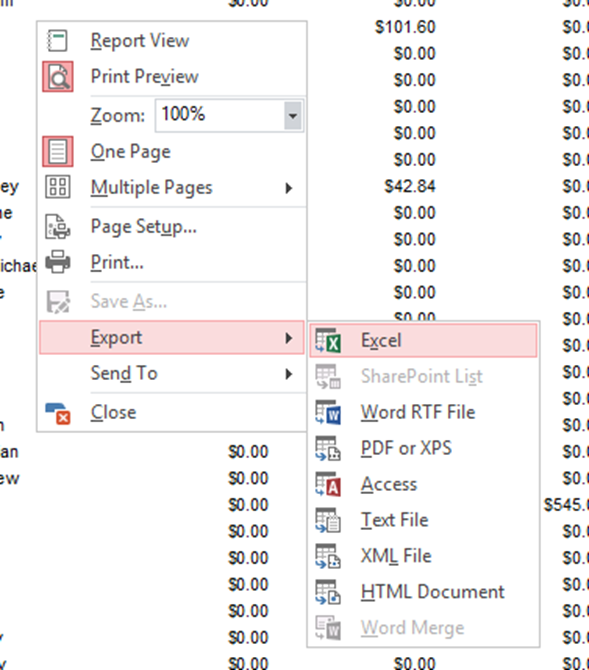
The report can also be exported into an Excel file format by right-clicking on the report, clicking Export, clicking Excel, select the file path were the report should be saved, then click OK
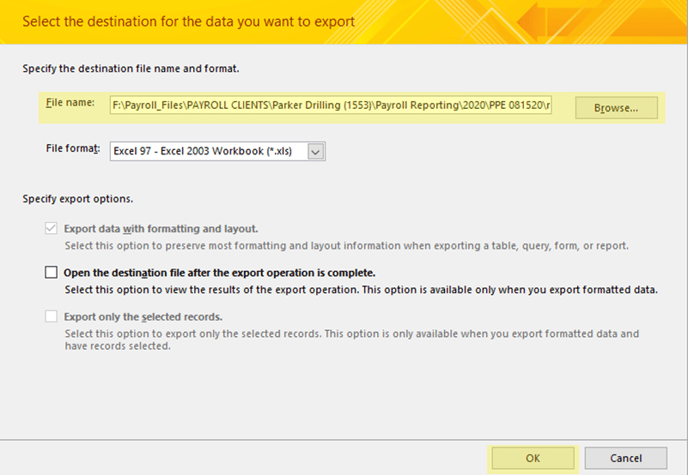
The file name will auto-populate, update the file name to appropriately reflect what type of report it is


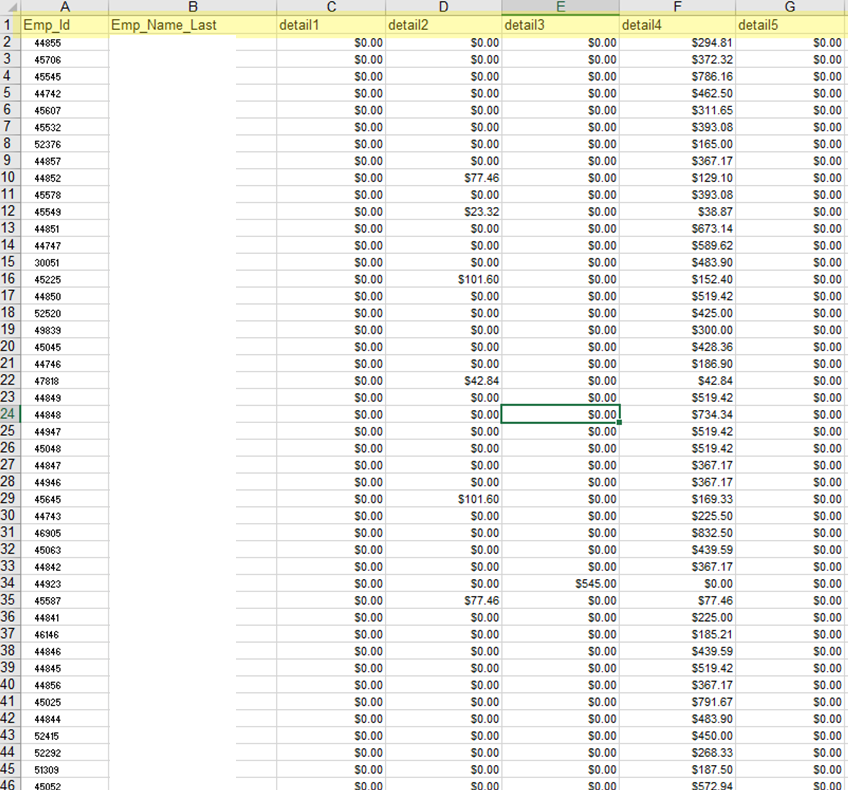
The excel file will include a listing for each transaction code selected. The file will display the employee name and ID, and the transaction code amounts. The column headers and transaction code names will not come through properly and should be updated (the PDF report can be used to determine what the headers and transaction codes should be)
What the Excel file looks like
Provide the RRSP report to the client by manually uploading to the Client portal via the Admin portal
-
- The excel file can be manipulated to add or remove columns/rows, labelling, or layout to meet the Client’s requirements