![PSII white-01-3.png]](https://kb.psii.global/hs-fs/hubfs/PSII%20white-01-3.png?height=40&name=PSII%20white-01-3.png)
Purpose:
The purpose of the Exit Package is to provide Clients with their employee and payroll records upon terminating services. This ensures that the client has all necessary information to manage their financial and compliance responsibilities effectively, maintaining a good professional relationship and ensuring a smooth transition.
Scope:
PSII is responsible for extending the offer to purchase the Exit Package to its Clients upon notice of termination.
The Exit package includes the following:
- Employee information report
- Year-to-date payroll totals report
- Vacation/PTO liability reports
- Deduction/Benefit listing report
- Company registration and rates report
The Client has the responsibility of requesting to purchase the Exit Package.
Prerequisites:
PSII is responsible for extending the offer to purchase the Exit Package to its Clients upon notice of termination. This is by means of a “Termination of Services” ticket where PSII outlines the termination process, determining PSII/Client responsibilities, and next-steps. This includes the option for the Client to purchase an Exit package. Should the Client request to purchase the Exit Package, PSII is responsible for preparing and providing the report package to the Client at the end of the professional relationship.
If, at the Client’s discretion, they choose not to purchase the Exit Package, PSII does not have any further responsibility to provide such reports.
Procedure:
Employee Information Report:
Login to PaySolution and select the Client from the Company Listing
From the Main Menu, navigate to Employee Setup
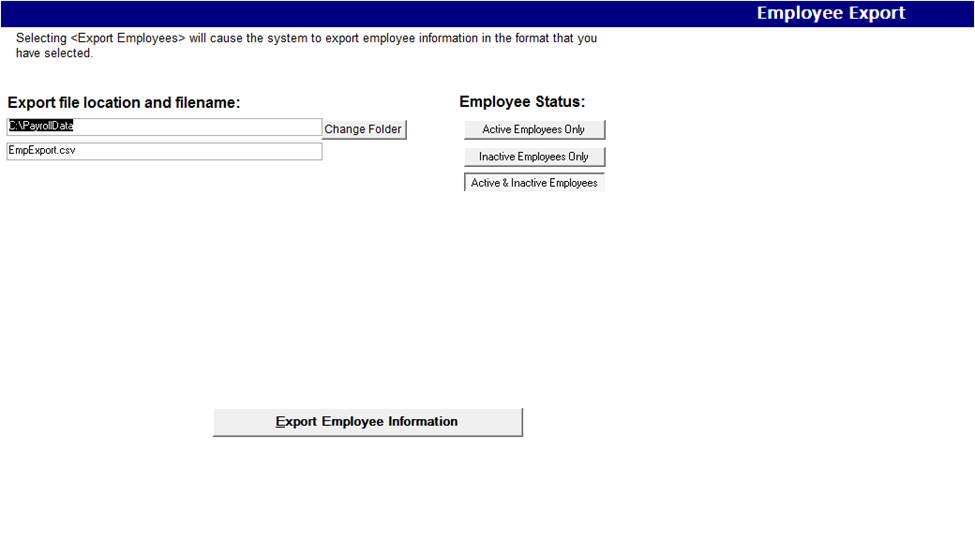
From the Employee Setup options, select Employee Export
Under the header Export file location and filename
- The first field is the file location. Click on Change Folder to browse and select the file path to save the export file to
- The second field is the name of the file. The file name can be changed here, or renamed once the export file has been saved in the client’s folder.
Under the header Employee Status
- Select Active & Inactive Employees. This will ensure all active and inactive employees are included in the export file so that the Client can retain this information for their historical records
Once all fields and options are selected, click Export Employee Information
The export file will become available in the applicable file path provided
Year-to-Date Payroll Totals Report:
Login to PaySolution and select the Client from the Company Listing
From the Main Menu, navigate to System Reports
From the System Reports options, select Payroll Exports
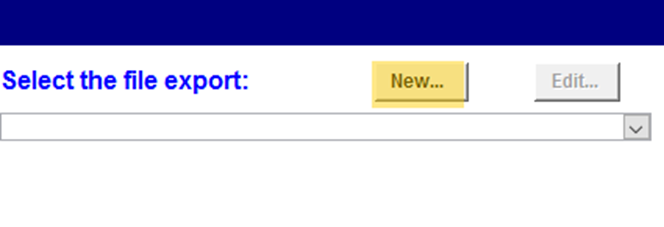
Click on the New… button to create a new payroll export
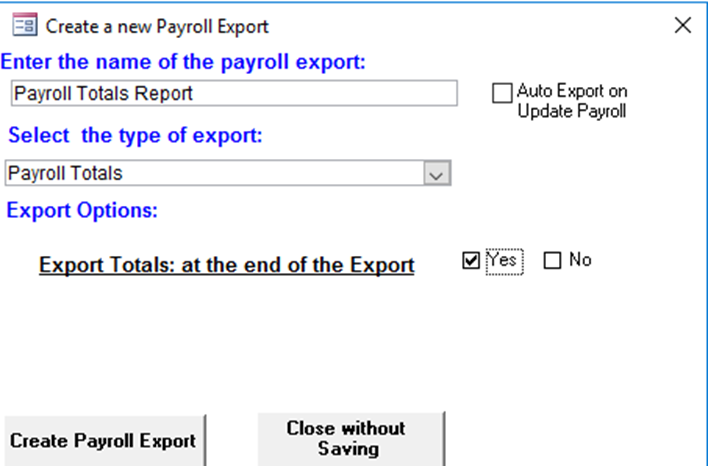
Create the export format
- Enter the name of the payroll export: enter the file name for the export (ie; Payroll Totals Report)
- Select the type of export: select Payroll Totals from the drop-down menu
- Export Options: select Yes for totals at the end of the export
Click Create Payroll Export
The new payroll export created will now appear in the export file listing.
Create the export template to include all applicable information required for the report
- Under Select the file export required, select the Payroll Totals Report export from the drop-down listing
- Under Column Mapping, add line items for the information to be included in the template
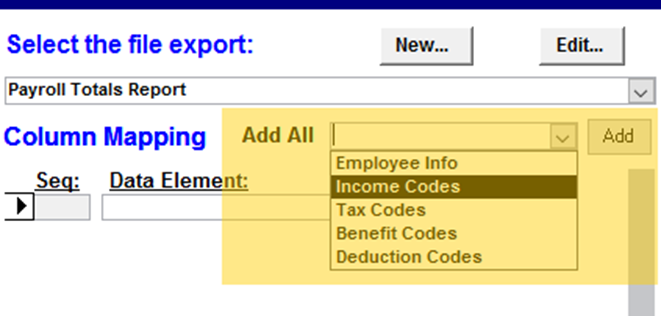
- Add All: There is a drop-down listing for types of information that can be added to the template in bulk. By adding information in bulk, this eliminates the need to manually add each applicable code individually.
- Seq column: the system will automatically assign the sequence number
- Data Element column: select the information to be included in the export from the drop-down listing. This method allows you to select individual information to be added to the template
- Type column: select the data type from the drop-down listing (hours, amount, base).
For the purposes of a year-to-date report, using the Add All bulk selections ensures all applicable information relating to payroll totals is included in the template.
In the Add All drop-down listing, select Employee Info, then click Add
Repeat these steps for all five options
It is important to know the order in which each option is added to the template
For example, it is typically easier to read a report by viewing the taxable income (Income codes, Benefits codes), employee deductions (Deduction codes), and then tax deductions and employer costs (Tax codes)
Once all the information has been added to the template, the information will appear as separate line items.
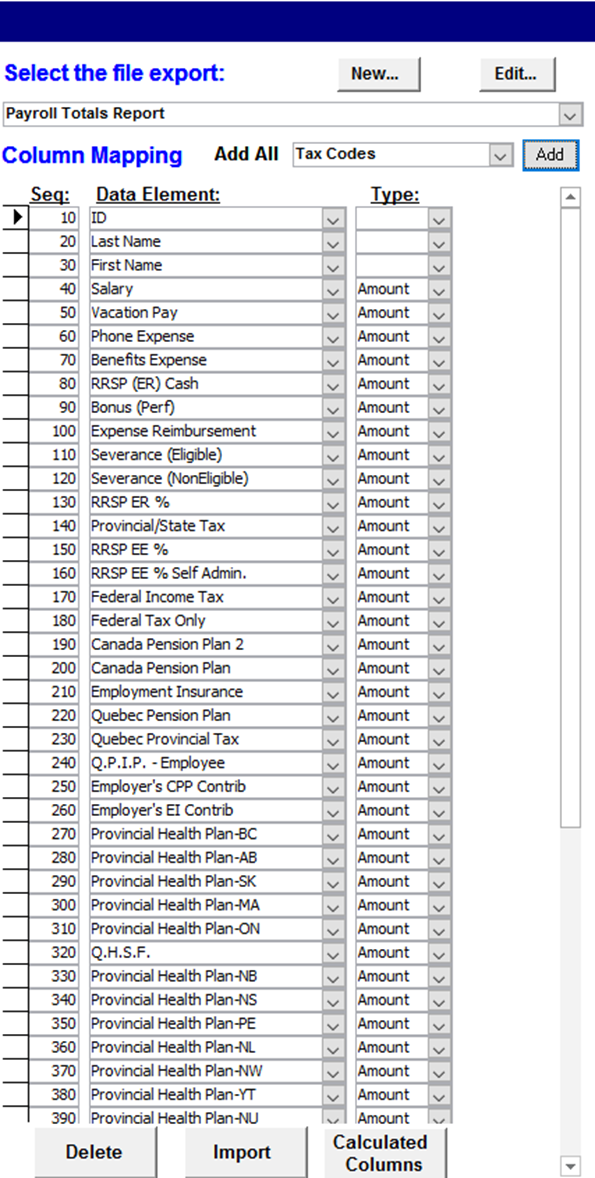
Once the export is created, the system saves the template. To access your export at any time, select it from the Select the file export required drop-down listing. Changes can be made at any time to the columns and the system will automatically save the changes
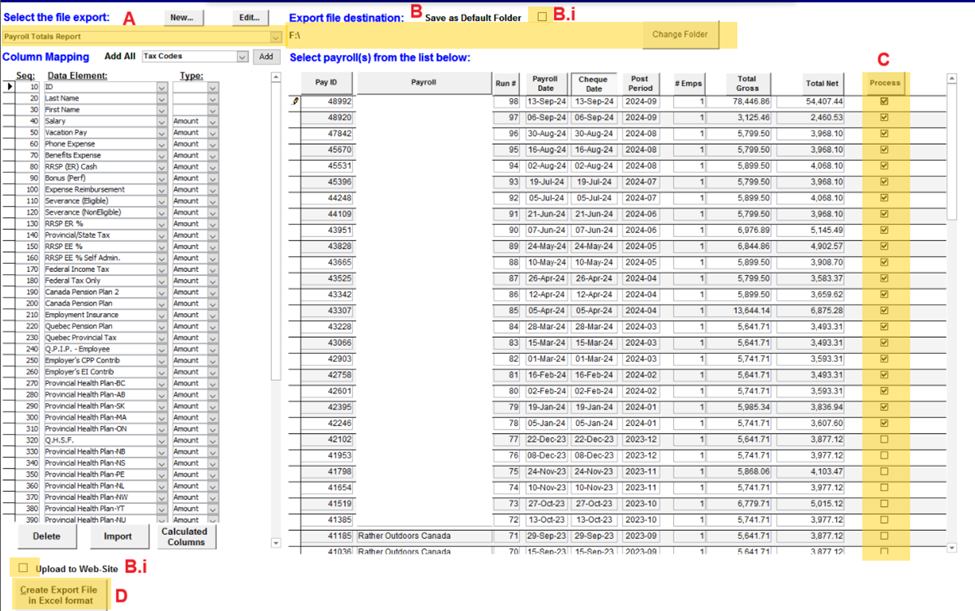
To generate the export file
- Under Select the file export required, select the export from the drop-down listing
- Under Export file destination section, select the file path by clicking on Change Folder
- Untick the boxes beside Save as Defaultb Folder and Update to Web-site
- Under the header Select payroll(s) from the list below section, tick the box under the Process column for each payroll that should be included in your export
- Click Create Export File in Excel Format at the bottom of the screen
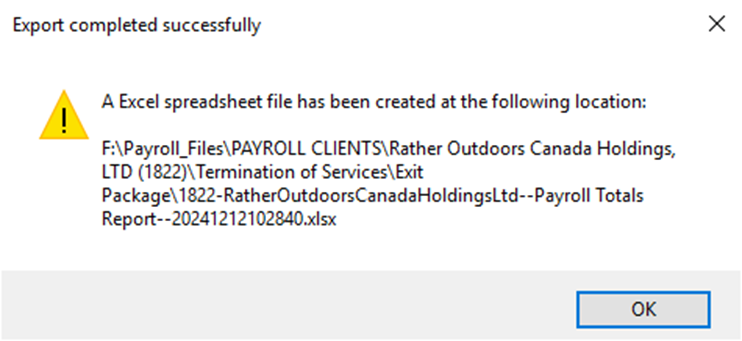
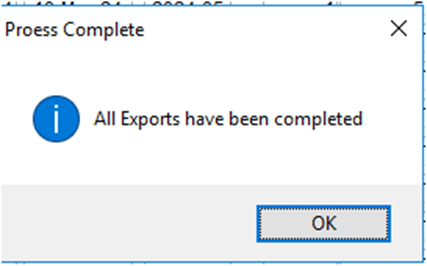
- A pop-up will appear confirming the export has been created and saved, click OK
Vacation/PTO Liability Reports:
Login to PaySolution and select the Client from the Company Listing
From the Main Menu, navigate to System Reports
From the System Reports options, select Payroll Reports/Employee Listings
Under the header Select the report(s) to be processed, select the Liability tab
There are multiple liability report options, select all by checking the tick boxes
Under the header Selection Criteria there are two sections:
- Select by group: Select by Employee or Select by Department
- The system will default to Select by Employee
- Active and/or Inactive group: Select Active & Inactive employees. This will ensure all active and inactive employees are included in the export file so that the Client can retain this information for their historical records
Under the header Payroll Selection, there are two options:
- Select All Payrolls: this option will group all payrolls and employees into one report
- Select Specific Payroll(s): this option will allow you to create reports specifically for the payroll selected. This option can be used if a Client has multiple sub-payrolls and are requesting reports to be created by payroll
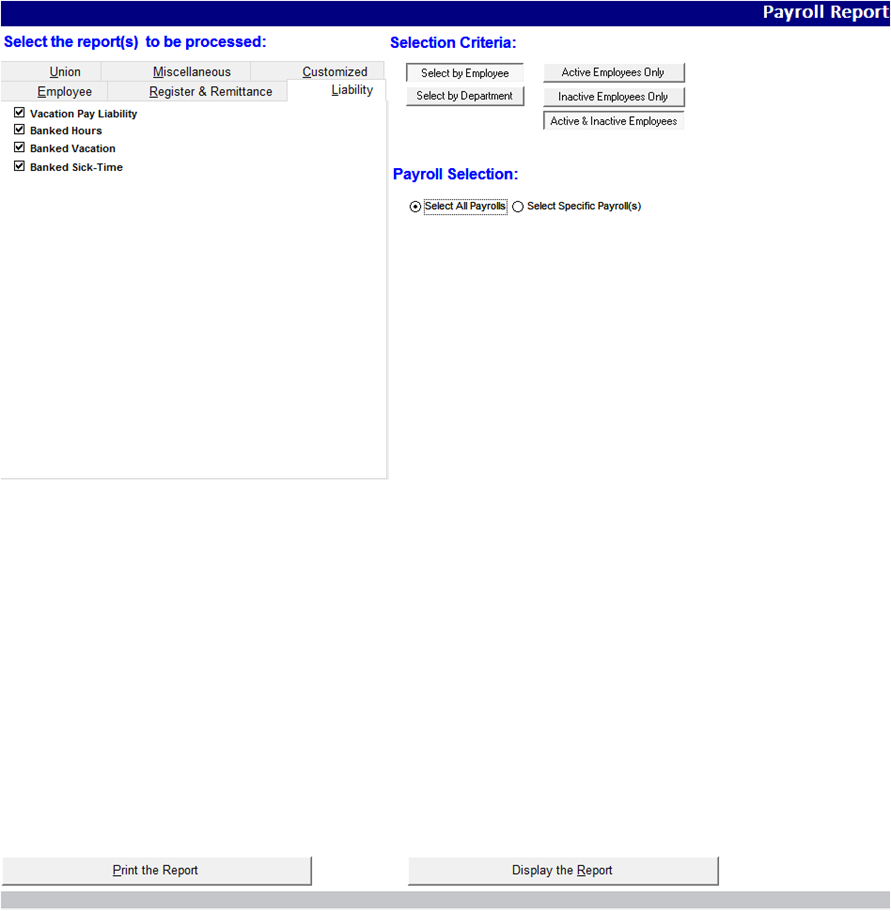
Once all fields and options are selected, click Display the Report at the bottom of the screen
A pop-up will appear with employee selection options, select Select All Employees then click Process Report
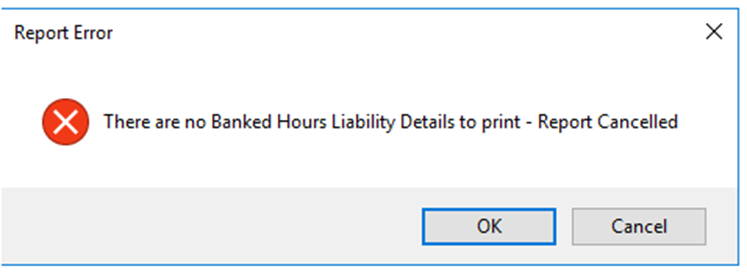
The system will display the liability reports. If the client does not have any of the selected liabilities setup (ie; Client does not accrue sick time) a report will not be created for that particular liability. A report error pop-up will appear notifying there is no report to create. Click OK
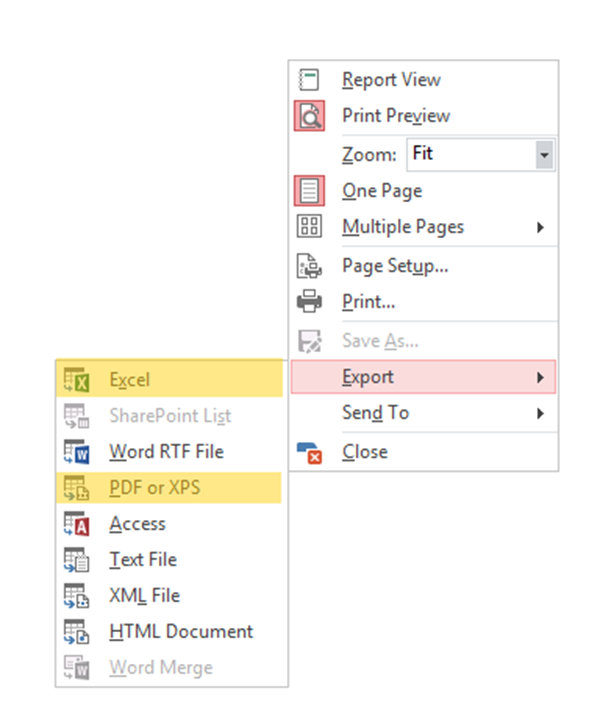
The reports can be exported to PDF or excel format by right-clicking on the report, select Export, then select the preferred format
Save the report into the appropriate Client folder.
Deduction and Benefit Listing:
Login to PaySolution and select the Client from the Company Listing
From the Main Menu, navigate to System Reports
From the System Reports options, select Payroll Reports/Employee Listings
Under the header Select the report(s) to be processed, select the Employee tab
Select the Deduction/Benefit Listing tick box
Under the header Selection Criteria there are two sections:
- Select by group: Select by Employee or Select by Department
- The system will default to Select by Employee
- Active and/or Inactive group: Select Active & Inactive employees. This will ensure all active and inactive employees are included in the export file so that the Client can retain this information for their historical records
Under the header Deduction/Benefit Selection, there are two options:
- Select All Dedn/Ben: this option will group all deductions and benefits for employees into one report
- Select Specific Dedn/Ben this option will allow you to create reports specifically for the deductions and benefits selected.
Once all fields and options are selected, click Display the Report at the bottom of the screen
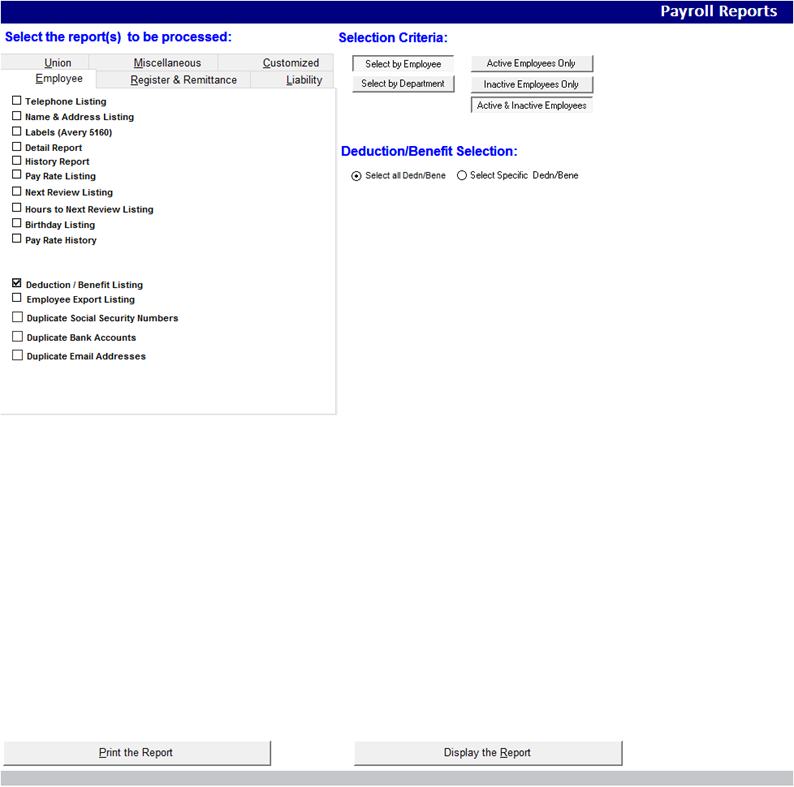
A pop-up will appear with employee selection options, select Select All Employees then click Process Report
The reports can be exported to PDF or excel format by right-clicking on the report, select Export, then select the preferred format.
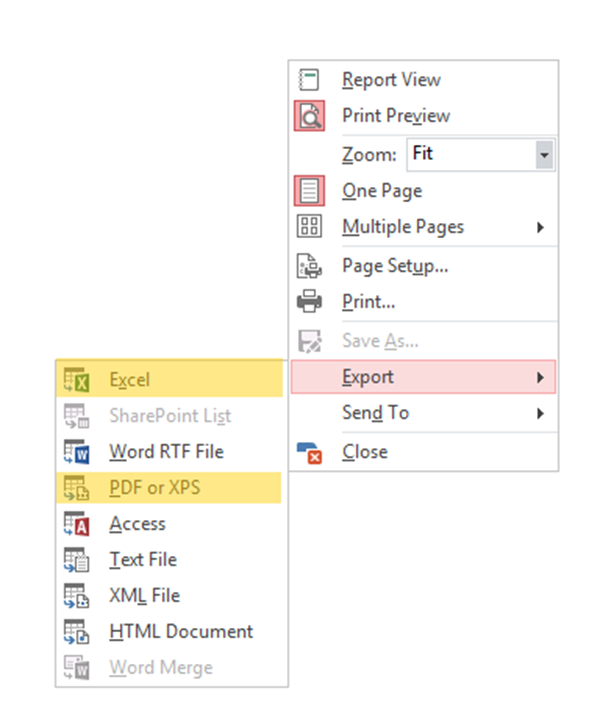
Save the report into the appropriate Client folder.
Company Registration and Rates Report:
Login to PaySolution and select the Client from the Company Listing
From the Main Menu, navigate to Company Setup
From Company Setup, select the Registration Numbers tab
Click on the Excel button to export the registration information
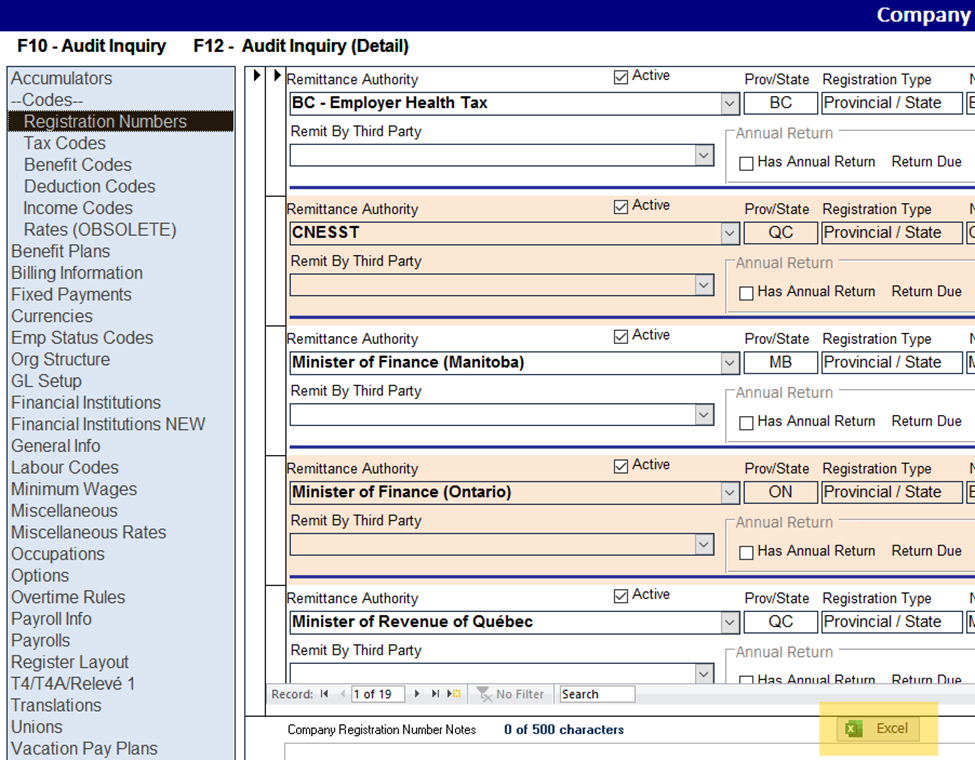
The system will display the excel file with the registration information. Save the file to the appropriate Client folder.
This file does not include any rate information, such as premium rates, exemptions, etc.
To gather this information, navigate to the Tax Codes tab
Select the applicable tax code to view the premium rate or exemption (ie; worker’s compensation, provincial health, etc).
For example, select the Provincial Health Plan-ON tax code. The rate and exemption will be displayed under the Rates section
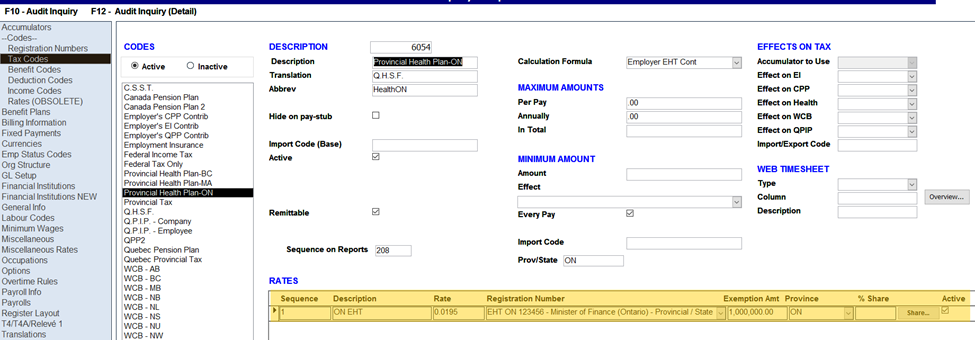
The Client receives an exemption of 1,000,000.00 and the tax rate is 0.0195.
Open the registration information file, add a column for Rate and another column for Exemption
Locate the line item for the provincial health registration number (the registration number is referenced in the tax code)
Enter the rate and exemption into the appropriate fields
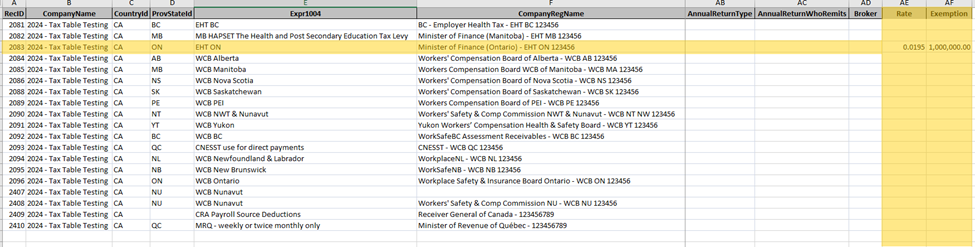
Repeat these steps for another other tax codes that have a rate or exemption.
Once the additional inputs have been entered, save the file.
Providing the Client with the Exit Package
The reports can be uploaded to the Employer portal (EPP) via the Admin portal
Once reports have been uploaded, notify the Client that the Exit Package has been made available on the EPP portal for their records
Conclusion:
In conclusion, providing Clients with the Exit Package when ending services guarantees that the client possesses all essential information to handle their financial and compliance obligations efficiently, fostering a positive professional relationship and facilitating a seamless transition.