![PSII white-01-3.png]](https://kb.psii.global/hs-fs/hubfs/PSII%20white-01-3.png?height=40&name=PSII%20white-01-3.png)
Prerequisites:
Before proceeding with adding an EHT account to the ONT-TAXS portal, ensure that you have the following information and access:
- Registered EHT Account: The Client must already have a registered EHT account with the Ontario Ministry of Finance.
- ONT-TAXS Portal Access: PSII will need to have access to the ONT-TAXS portal. If you do not have access, you can register for an account on the Ontario Ministry of Finance website.
Procedure:
Login to the ONT-TAXS Portal:
Using your registered username and password, login to the ONT-TAXS Portal on the Ontario Ministry of Finance website.
The login credentials are stored in LastPass. A verification code will be sent to payroll@psii.global
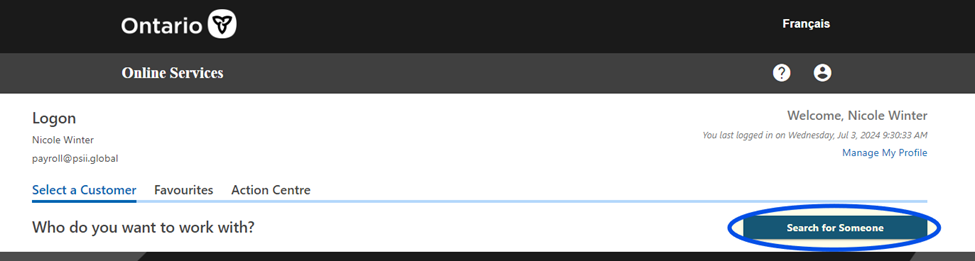
Navigate to "Search for Someone":
Once logged in, click on the "Search for Someone" button. This prompts you to the company tax accounts.
Select the Tax Account:
Select the company account from the listing by using the search bar or scrolling through the company list.
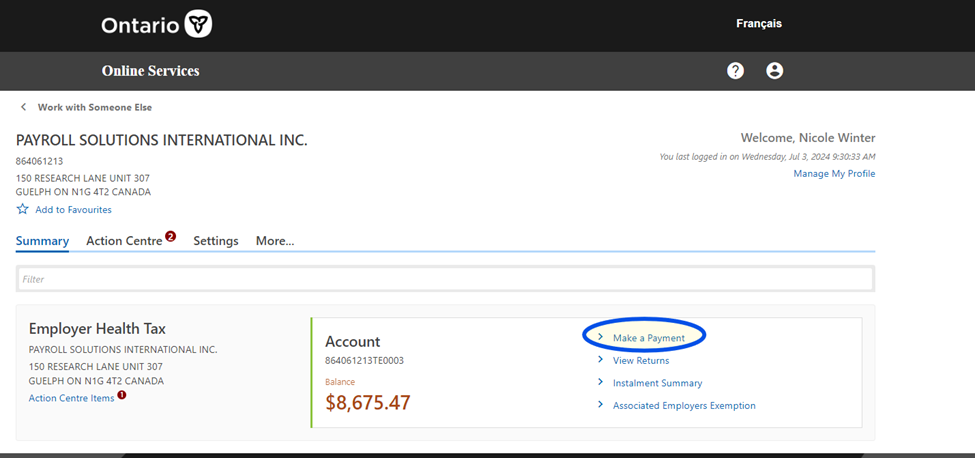
Navigate to "Summary":
Once a company has been selected, the system will default to view the Summary tab which displays the Employer Health Tax details.
If there is an outstanding balance on the account, the balance will be displayed on the main screen.
Navigate to “Make a Payment”:
To make a payment, click “Make a Payment”
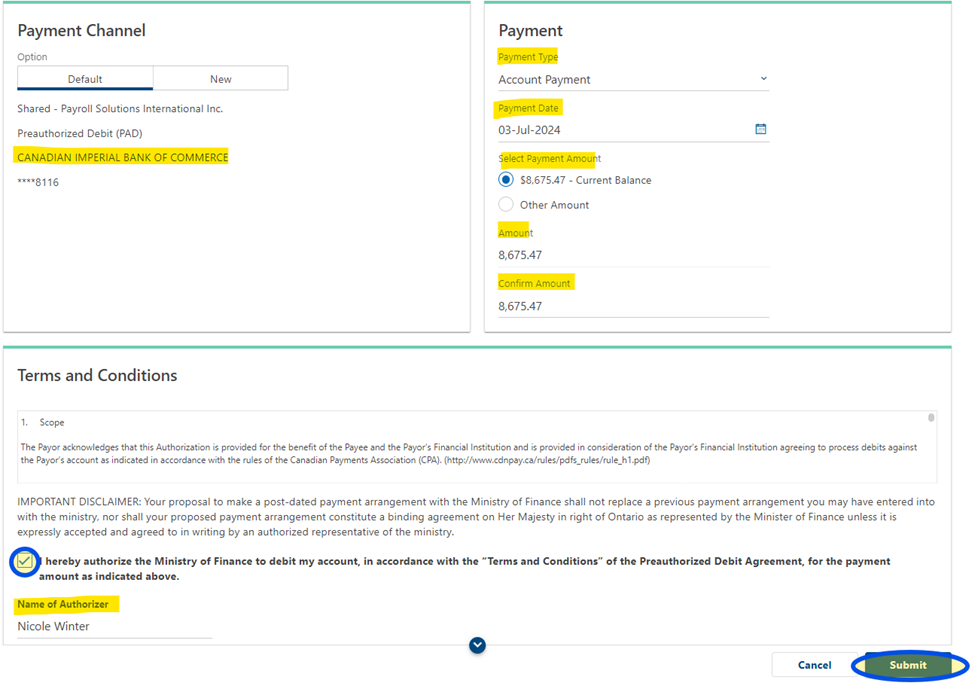
Under the Payment Channel section, select the bank account to make the payment from.
Note: PSII’s CIBC 116 account is currently the only account setup for payments
Under the Payment section, enter the payment details.
Payment Type:
-
-
- To make payment for an outstanding balance, select “Account Payment”
- To make payment for a standard monthly remittance, select the instalment for the applicable month
-
Payment Date:
-
-
- select the date for which the payment is due
-
Select Payment Amount:
-
-
- If there is an outstanding balance, the system will default to the current balance due to be paid
- If a specific payment amount is required, select “Other Amount”
-
Amount:
-
-
- Enter the payment amount
-
Confirm Amount:
-
-
- Re-enter the payment amount
-
Verification and Authorization:
Under the Terms and Conditions section, check the box that you acknowledge the T&C and authorize the Ministry of Finance to debit the account selected under the Payment Channel. Enter your name as the authorizer. Then click the “Submit” button to proceed.
Confirmation and Account Activation:
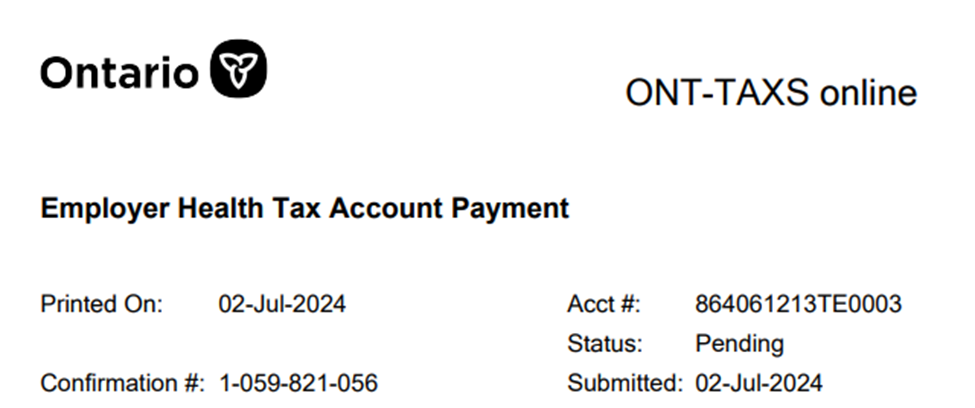
Upon successful submission, you will receive a confirmation message indicating that your EHT account payment has been submitted for processing.
Save a copy of the confirmation in the Client’s folder to retain for our records.
Additional Notes:
- It is essential to ensure the accuracy of the information provided during the account setup process. Any discrepancies or errors in the information may affect the proper functioning of your EHT account on the ONT-TAXS portal.
- If you encounter any issues or need assistance during the process, you can contact the Ontario Ministry of Finance helpline or refer to the available resources on their website.
Conclusion:
By following this SOP, PSII will be able to successfully make payments on ONT-TAXS portal and effectively manage our compliance obligations.