![PSII white-01-3.png]](https://kb.psii.global/hs-fs/hubfs/PSII%20white-01-3.png?height=40&name=PSII%20white-01-3.png)
Scope:
This SOP aims to guide users on how to effectively use the PDOC to accurately calculate payroll deductions.
Procedure:
Accessing the PDOC:
To access the PDOC, follow these steps:
Visit the Canada Revenue Agency's official website
In the search bar, type "Payroll Deductions Online Calculator" and press Enter.
Click on the first search result to access the PDOC.
Using the PDOC:
Once you have accessed the PDOC, follow these steps to calculate payroll deductions:
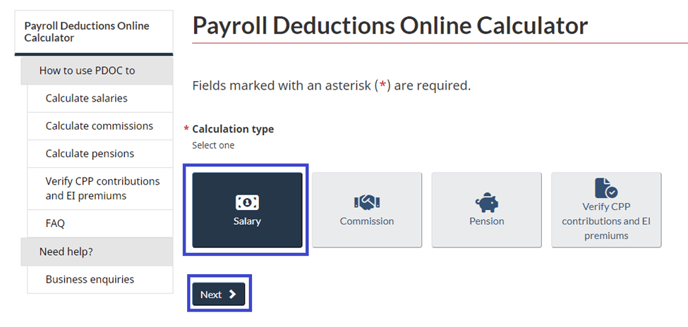
Enter the calculation type.
Click Next
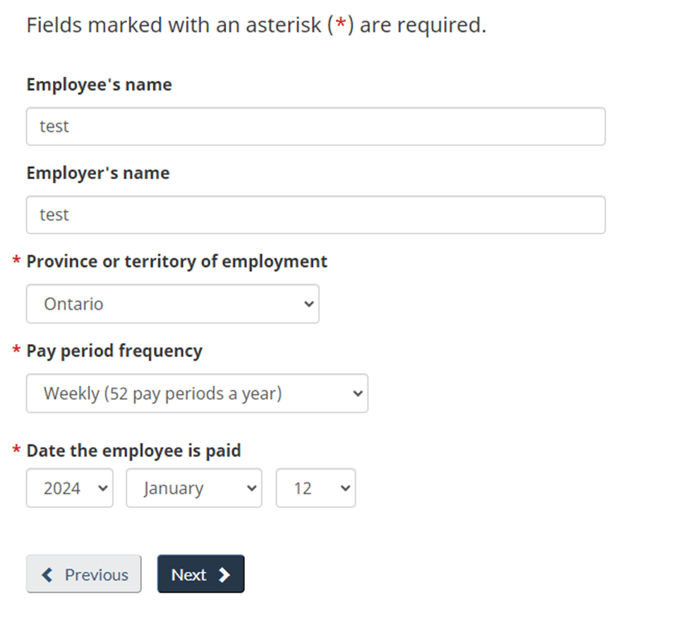
Enter the employee's name (optional).
Enter the employer's name (optional).
Enter the employee's province or territory of employment (mandatory).
Select the appropriate pay period frequency (e.g., weekly, bi-weekly, monthly) (mandatory).
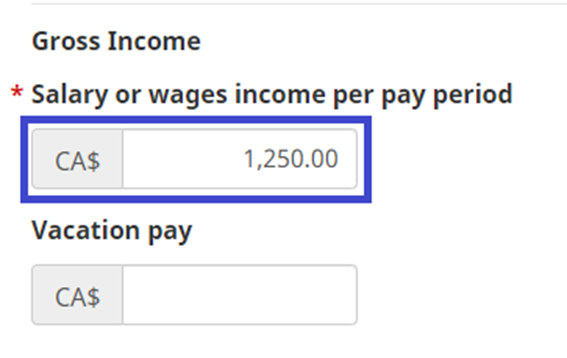
Enter the employee's gross salary or wages for the pay period.
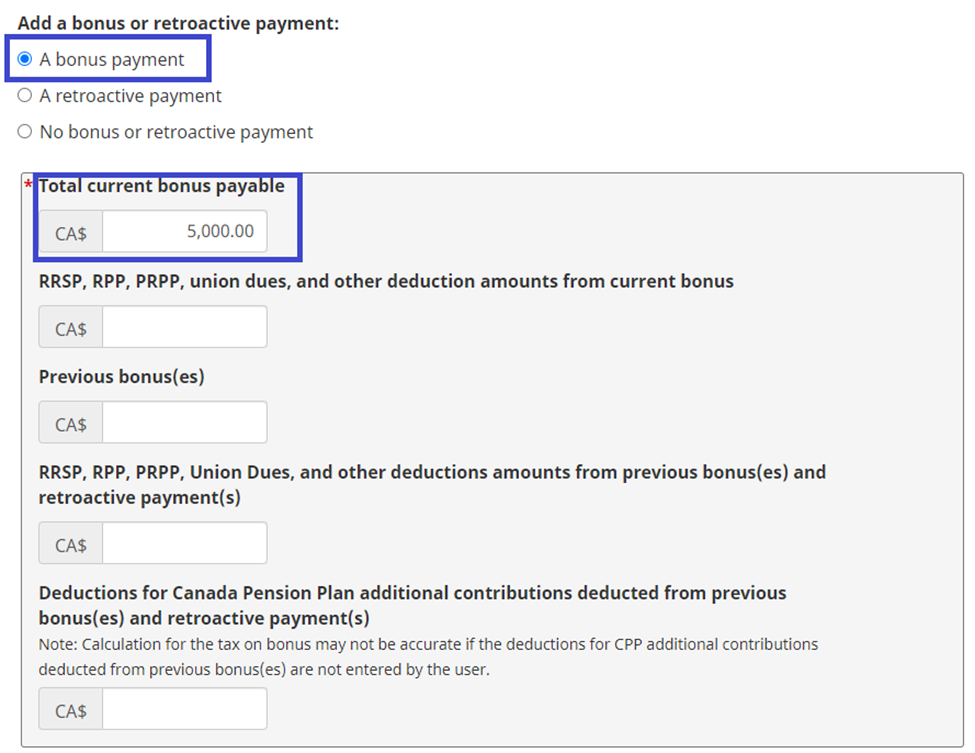
Enter the employee's bonus or retroactive wages for the pay period, if applicable.
Enter any payments that are subject to the bonus tax method. This can include bonus, retroactive pay, periodic payments, lump sum payments, etc.
Enter the employee's taxable benefits and allowances information, if applicable.

Enter the employee's tax deductions, tax reductions and non-refundable tax credit amounts, if applicable.
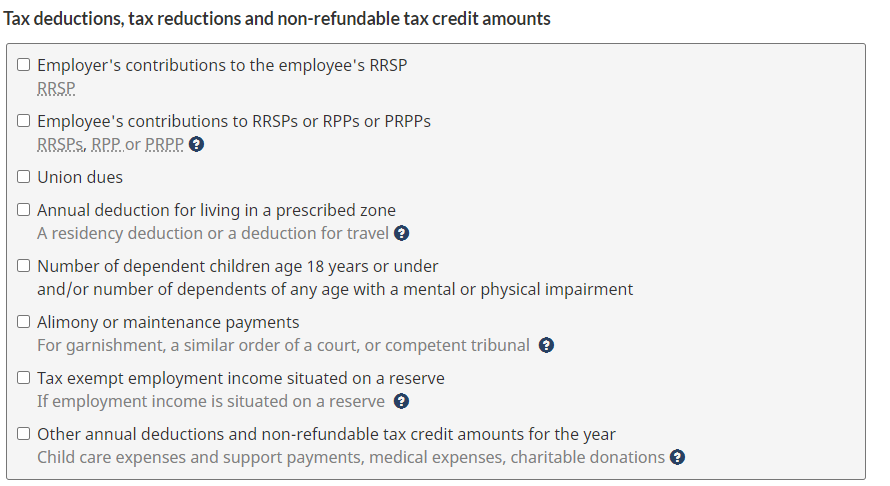
Provide a Yes or No answer regarding QPP.

Provide a Yes or No answer regarding clergy.

Click Next.
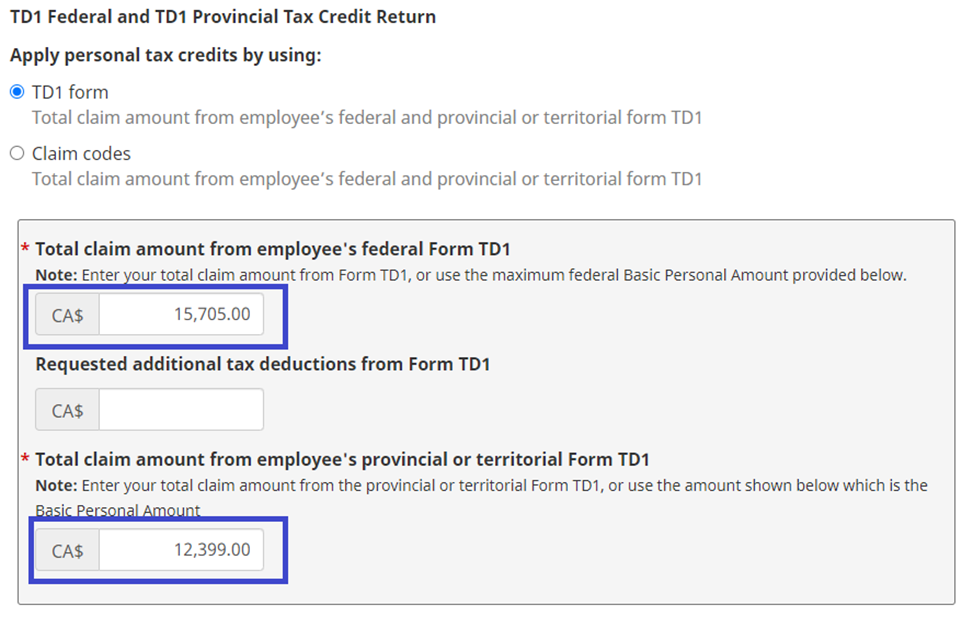
Enter the employee's Federal and Provincial TD1 tax credit information.
The TD1 tax credits will auto-populate with the basic personal amounts based on the tax year. The values can be manually adjusted if the employee has different tax credits.
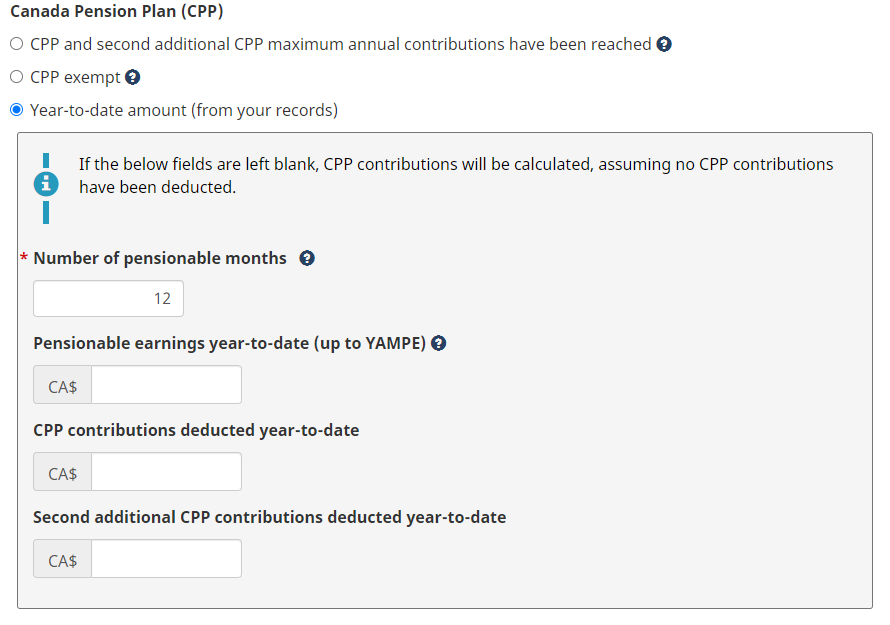
Enter the employee's Canada Pension Plan (CPP) information.
If the employee has not reached the CPP maximums, select the “Year to date amount (from your records)” radio button.
Enter the prior YTD pensionable earnings and employee CPP contributions.
If this is the employee's first payroll of the year, leave these fields blank since there are no YTD data to input
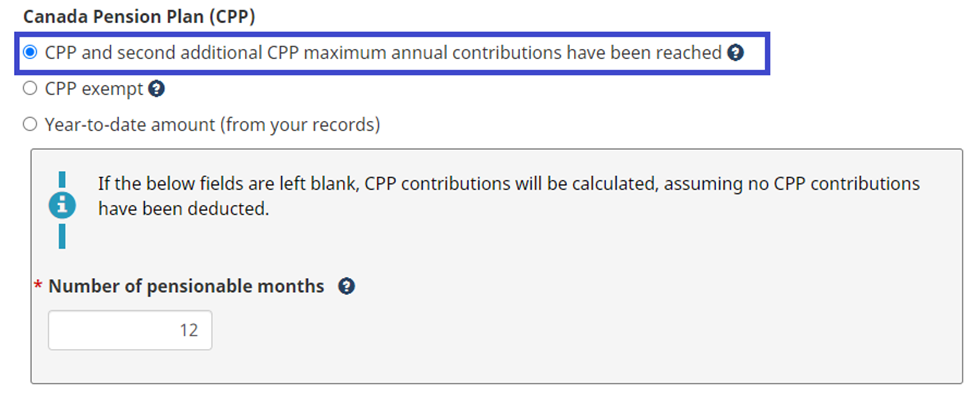
If the employee has reached the CPP maximums, select the “CPP and second additional CPP maximum annual contributions have been reached” radio button.
Enter the employee's Employment Insurance (EI) information.
If the employee has not reached the EI maximum, select the “Year to date amount (from your records)” radio button.
Enter the prior YTD insurable earnings and employee EI premiums
If this is the employee's first payroll of the year, leave these fields blank since there are no YTD data to input
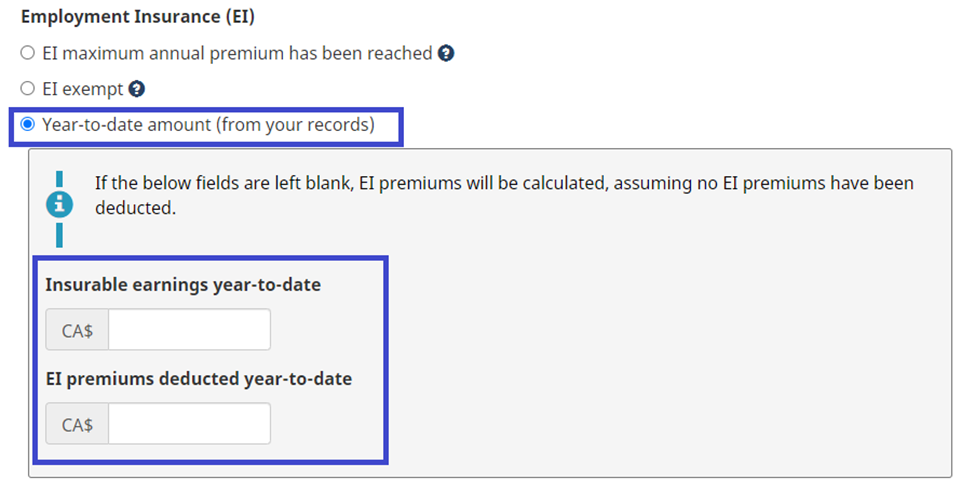
If the employee has reached the EI maximum, select the “EI maximum annual premium has been reached” radio button

Click Calculate to generate the payroll deductions report.
Understanding the Payroll Deductions Report:
After clicking on the "Calculate" button, the PDOC will generate a payroll deductions report. This report will include the following information:
Total payroll deductions:
This is the sum of all deductions to be withheld from the employee's paycheck.
Federal income tax deduction:
This is the amount of income tax to be withheld based on the employee's salary and tax bracket.
The income tax will be separated by payment type (salary and bonus)
Provincial or territorial income tax deduction:
This is the amount of income tax to be withheld based on the employee's province or territory of employment.
The income tax will be separated by payment type (salary and bonus)
Canada Pension Plan (CPP) contributions:
This is the amount of CPP contributions to be withheld based on the employee's salary and CPP rates.
Employment Insurance (EI) premiums:
This is the amount of EI premiums to be withheld based on the employee's salary and EI rates.
Other deductions:
This section may include additional deductions such as union dues, pension contributions, or other specific deductions based on the employee's circumstances.
Sample PDOC Calculation Results:
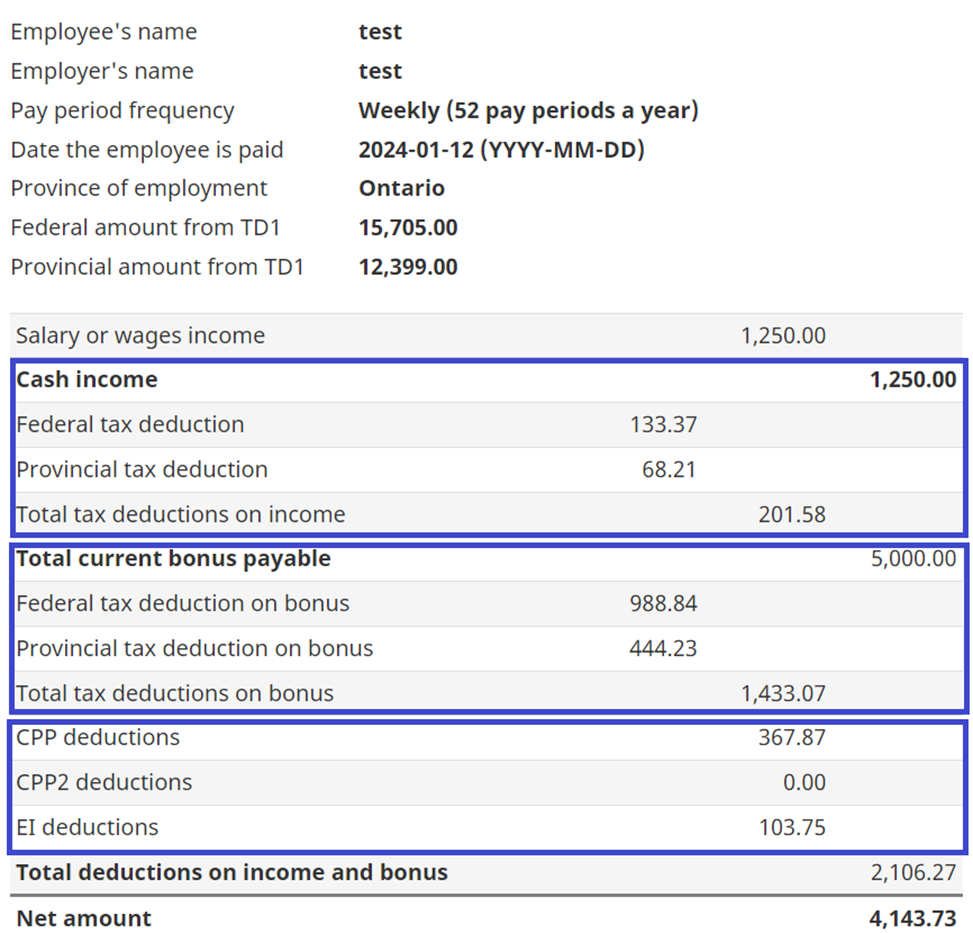
Below is a sample PDOC calculation using the below information:
Employee is receiving their first payroll of the tax year
Employee is paid weekly
Employee is employed in Ontario
Employee receives the basic personal TD1 tax credits
Employee's gross wages is 1,250.00
Employee is receiving a single bonus payment of 5,000.00
Employee does not have any taxable benefits, allowances, or other deductions
CRA Updates to PDOC:
The CRA regularly updates the PDOC to reflect any changes in tax rates or regulations. It is important to check for updates and ensure that you are using the most recent version of the PDOC to calculate payroll deductions accurately.
CRA has two pre-scheduled tax releases scheduled for January 1 and July 1 of each tax year. Stay informed of pre-scheduled or any additional tax releases as the changes will affect the PDOC calculation.
Conclusion:
The Payroll Deductions Online Calculator provided by the Canada Revenue Agency is a valuable tool for employers to calculate accurate payroll deductions for their employees. By following this SOP and understanding the payroll deductions report generated by the PDOC, employers can ensure compliance with tax regulations and fulfill their payroll obligations effectively.