![PSII white-01-3.png]](https://kb.psii.global/hs-fs/hubfs/PSII%20white-01-3.png?height=40&name=PSII%20white-01-3.png)
Prerequisites:
Before proceeding with adding an EHT account to the ONT-TAXS portal, ensure that you have the following information and access:
- Registered EHT Account: The Client must already have a registered EHT account with the Ontario Ministry of Finance.
- ONT-TAXS Portal Access: PSII will need to have access to the ONT-TAXS portal. If you do not have access, you can register for an account on the Ontario Ministry of Finance website.
Procedure:
Login to the ONT-TAXS Portal:
Using your registered username and password, login to the ONT-TAXS Portal on the Ontario Ministry of Finance website.
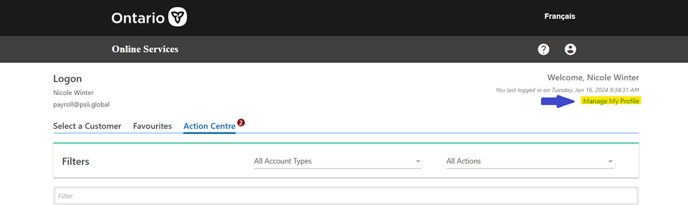
Navigate to "Manage My Profile":
Once logged in, navigate to the "Manage My Profile" section of the ONT-TAXS portal. This section allows you to add or manage your tax accounts.
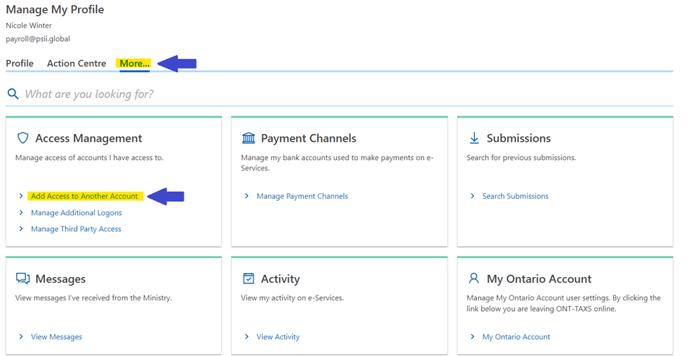
Select "More...":
This tab will provide the user with tools to manage the ONT-TAXS account, such as viewing submissions, messages from the Ministry, activity on the account, managing account access, etc.
Navigate to "Access Management":
Navigate to the "Access Management" section. From the list of available options, select "Add Access to Another Account".
Gather Client's EHT Account Information:
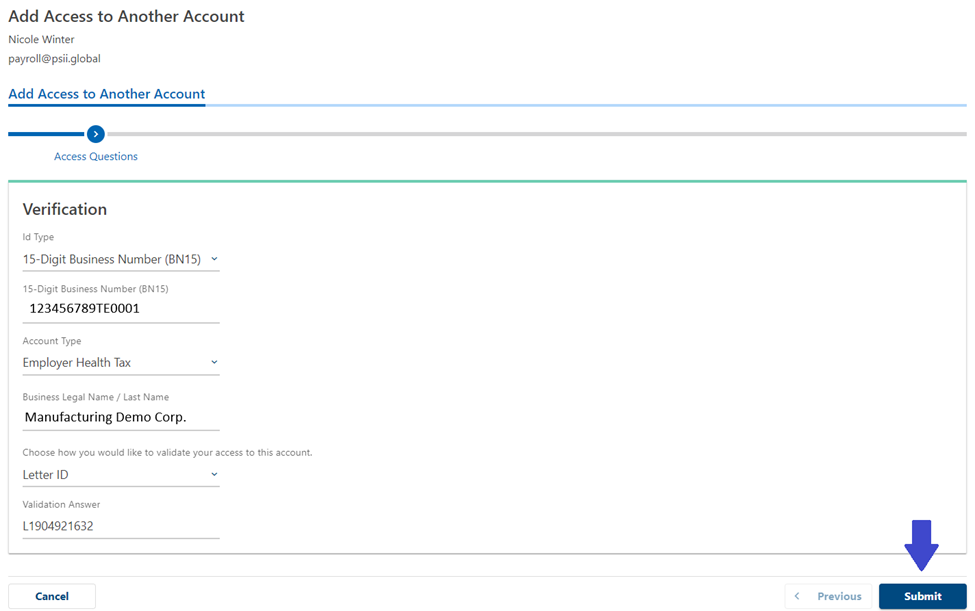
ID Type = 15-Digit Business Number (BN15)
15-Digit Business Number (BN15) = Client’s EHT Ontario business number
Account Type = Employer Health Tax
Business Legal Name/Last Name = Client’s registered business name
Choose how you would like to validate your access to this account = Select the option that best suits the information PSII has on file (Letter ID, most recent payment amount, most recent refund amount)
Enter the data required based on the above selection =
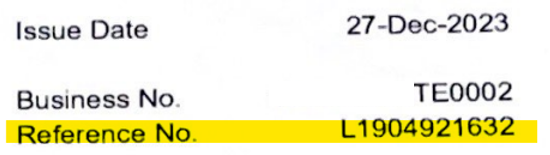
Letter ID = Reference number on the most recent statement
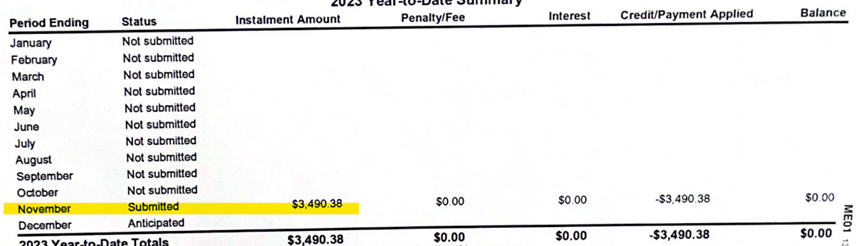
Most recent payment amount = most recent payment issued. This amount can be located on the statement of account or the remittance statement in the payroll system
Most recent refund amount = most recent refund issued. This amount can be located on the statement of account
Verification and Confirmation:
After entering the necessary information, review all the details carefully to ensure accuracy. Once verified, click on the "Submit" button to proceed.
Confirmation and Account Activation:
Upon successful submission, you will receive a confirmation message indicating that your EHT account has been added to the ONT-TAXS portal. The Clients account will now be activated and ready for use under PSII's account.
Save a copy of the confirmation in the Client’s folder to retain for our records.

Additional Notes:
- It is essential to ensure the accuracy of the information provided during the account setup process. Any discrepancies or errors in the information may affect the proper functioning of your EHT account on the ONT-TAXS portal.
- If you encounter any issues or need assistance during the process, you can contact the Ontario Ministry of Finance helpline or refer to the available resources on their website.
Conclusion:
By following this SOP, PSII will be able to successfully add Client EHT accounts to the ONT-TAXS portal and effectively manage our compliance obligations.