![PSII white-01-3.png]](https://kb.psii.global/hs-fs/hubfs/PSII%20white-01-3.png?height=40&name=PSII%20white-01-3.png)
When contacting CRA on behalf of our Clients, we will need to connect with the Business inquiries department.
Business inquiries contact number:
1-800-959-5525
Hours of operation:
Monday to Friday: 8 am to 8 pm
Saturday: 9 am to 5 pm
Sunday: Closed
Holidays: Closed
CRA will request your Representative ID, have this information ready.
Effective February 22, 2021, all representatives from organizations will be required to provide their representative ID issued by CRA. This information is visible from within represent a client under review and update. Please take note of your rep ID before calling CRA moving forward.
Have the Client’s information handy so that you can answer CRA’s security questions.
Sample security questions:- CRA account number
- Address on file with CRA
- Remittance frequency
- Fiscal year end
Gather the information or supporting documents related to the reason for the service call, such as;
- Government notices
- Remittance reporting history
- Payment records
Always record their name and badge number in your notes, it is important to have this information on file.
Record phone call details in your notes so that they can be placed on the client’s file in our CRM or within their client folder.
In some cases, requests can take 6-8 weeks for CRA to process. Employer Services Specialists are able to login to CRA Rep a Client to view the client’s account to see if their request has been actioned, or a follow- up call is required to get a status update.
Within the CRM system, locate the Ticket relating to the service call.
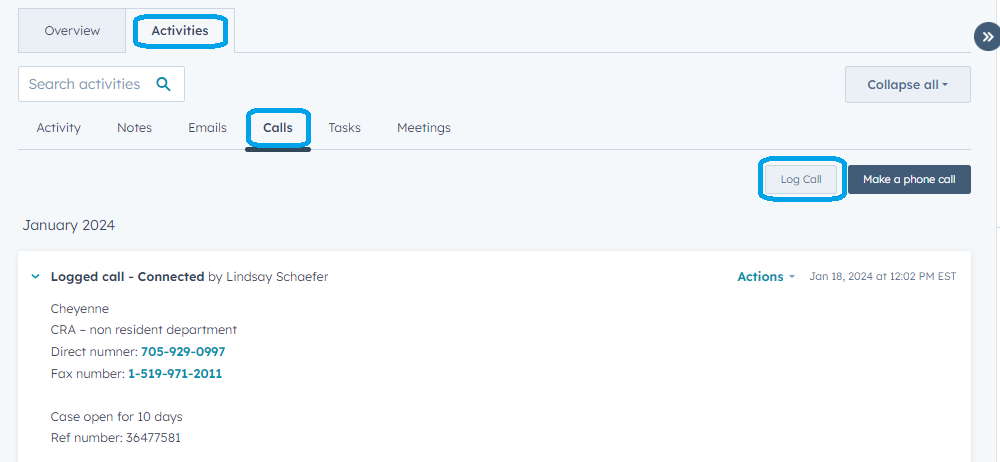
Log the phone call by navigating to Activities and selecting the Calls tab.
Click on Log Call and add the phone call details from your notes. Alternatively, the phone call notes document can be attached to the logged phone call.
This action will record the phone call within the Ticket allowing other users to have visibility of the actions taken to resolve the inquiry.
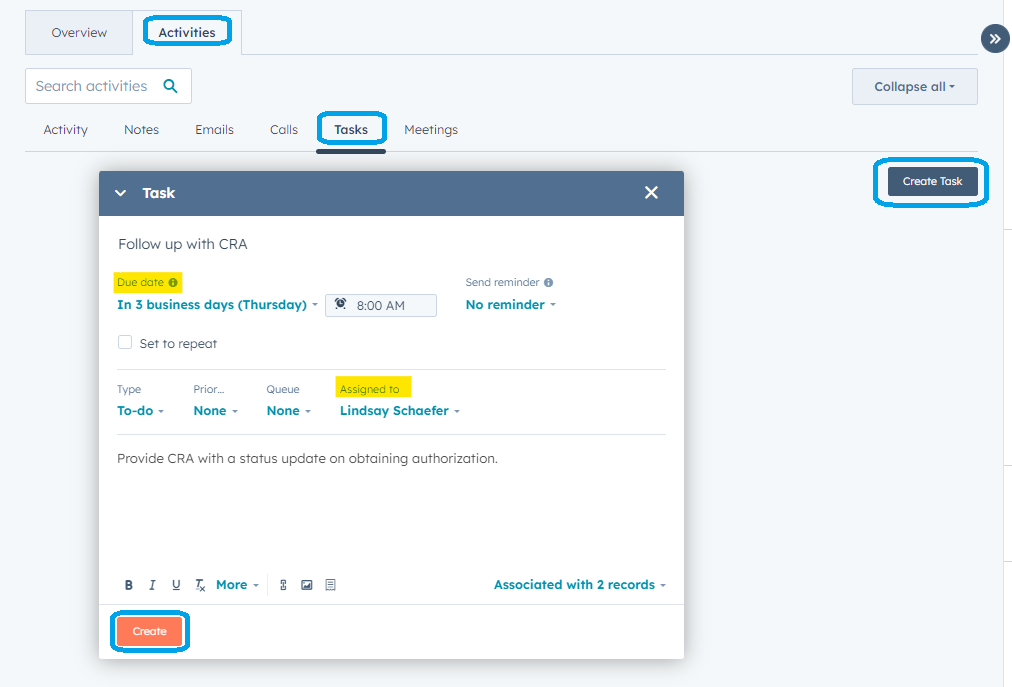
Create tasks for actionable items by navigating to Activities and selecting the Tasks tab.
Click Create Task and enter the task details. When finished, click Create.
The task will become visible from within the Ticket, as well as within the "Assigned to" user's Task list within the CRM.
Within the Ticket, provide the Client with an update regarding the communication with CRA so that they are aware of the actions taken on their account.
Ensure to keep the Client appraise of the resolution status until the Ticket has been fully resolved.