![PSII white-01-3.png]](https://kb.psii.global/hs-fs/hubfs/PSII%20white-01-3.png?height=40&name=PSII%20white-01-3.png)
Scope:
The Company Listing can be used for gathering information such as Companies assigned to specific service providers, the payroll owner of a Company, where a Company’s reports are located, funding methods, etc.
Procedure:
- Login to PaySolution
- From the Main Menu, select System Administration

- Under the Tools section, select Payrolls

- A Company Listing will appear. The default system setting is to display all Company profiles that are currently set as “active” in PaySolution.
There is an “active only” checkbox that can be de-selected to display all active and inactive Company profiles.
- To export the data, click on the To Excel The system will download the listing to Excel.

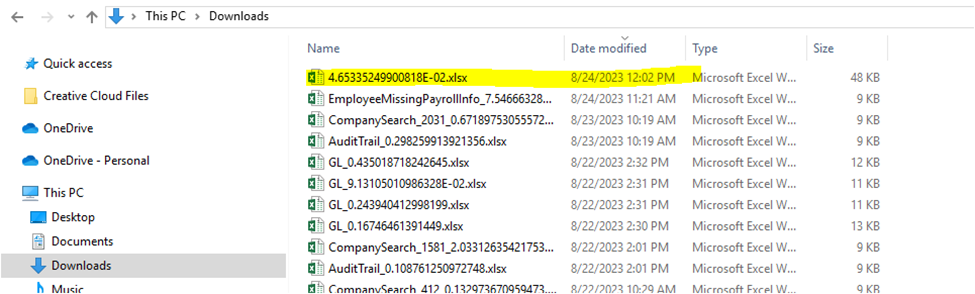
- Navigate to File Explorer and select the Downloads Double-click on the file to open.
- The file can be filtered to accommodate your specific needs.